Осваивайте редактор на практике.
Самый быстрый путь от «у меня есть картинка» до «у меня чистый PDF, который я правда буду вышивать». Короткие практичные страницы с привязкой к реальным местам в интерфейсе и сочетаниям клавиш.
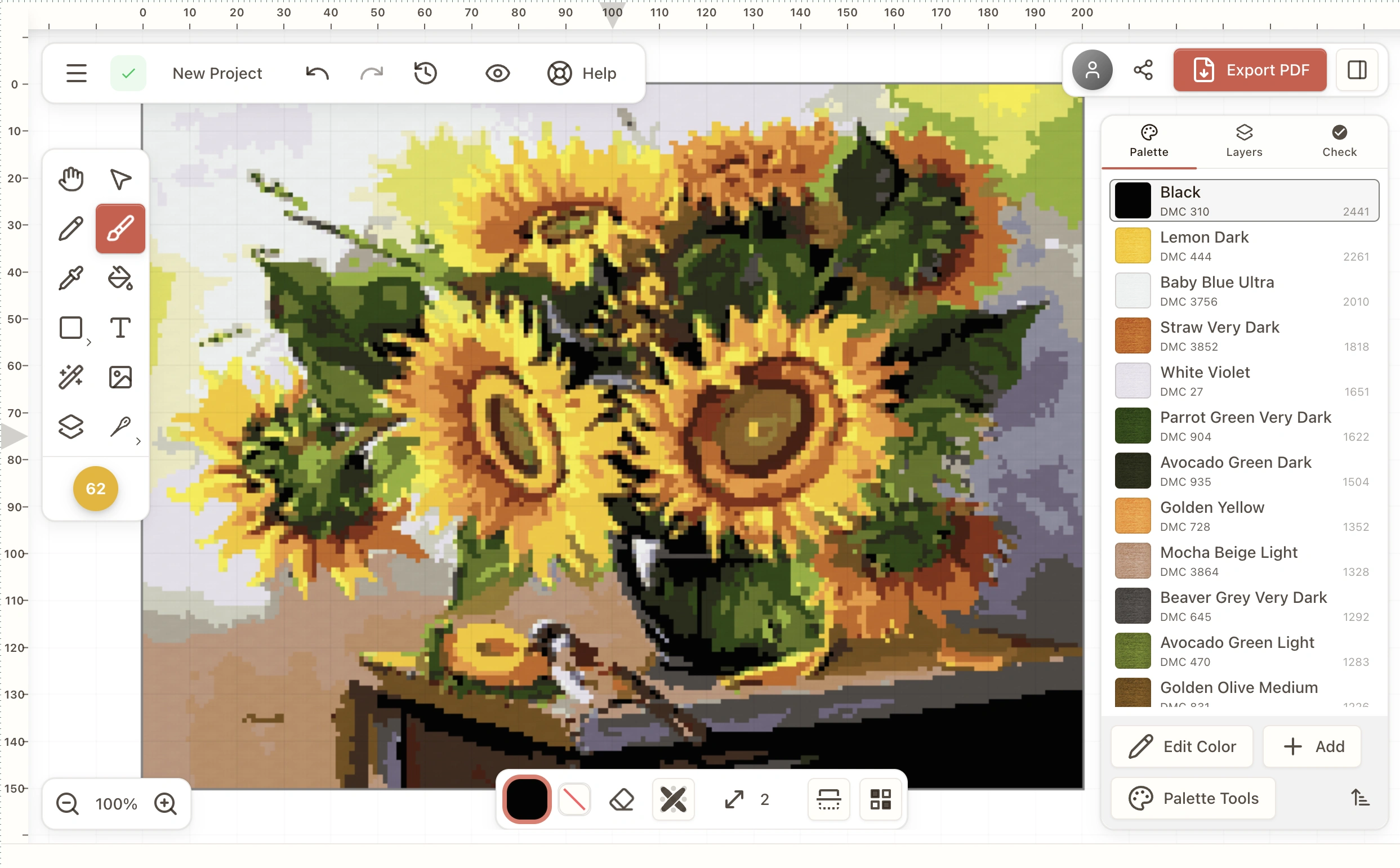
Stitchmate — редактор схем вышивки крестом прямо в браузере, созданный для тех, кому нужны чистые схемы, готовые к печати, без громоздких программ. В нём также можно делать схемы для гобелена и алмазной мозаики — теми же инструментами, но со стежками, материалами и терминами каждой техники, — а схему можно перевести в другую технику в один шаг.
Этот справочник проведёт вас по всем функциям: от импорта фото и настройки палитры до рисования кистью, инструментами выделения и фигур и экспорта многостраничного PDF, с которым можно садиться за пяльцы.
Каждая страница посвящена одному инструменту или понятию, показывает, где именно он находится в интерфейсе, и перечисляет сочетания клавиш, которые ускоряют работу. Начните с пути из 8 шагов ниже, а затем изучайте разделы в своём темпе.
С чего начать
Путь из 8 шагов от «у меня есть картинка» до «у меня PDF, который я правда буду вышивать».
Getting Started
New to Stitchmate? What you can make, the four ways to start a pattern (a photo, a PDF chart, a pattern file or a blank grid), and where your patterns, palettes, motifs and threads live.
Home (the screen Stitchmate opens on)Image Import
Turn a photo into a pattern in three steps: Photo (crop, straighten, erase the background), Pattern (size, threads, colors, detail, clean up), and PDF.
Home → Create → From an image. From a pattern made this way: Size & colors (top left of the editor), or File → Back to Size & Colors…Editing Colors
Change colors without breaking your pattern: swap a thread everywhere or in one area, merge look-alikes, see where a color is used, and give every color a clear symbol.
Right panel → PalettePalette Tools
Rework every color in your pattern at once: recolor it with another palette, switch thread brands, warm or brighten it, cut it down to fewer threads, and save palettes.
Palette → Palette toolsConfetti Cleanup Tool
Get rid of confetti, the lone single stitches that make a pattern tedious to stitch. Clean the whole pattern in one press, preview a stronger pass, protect faces and text with a mask, or brush away speckles by hand.
Left toolbar → Clean Up Confetti / Right panel → CheckBrush Tool
BPaint and erase stitches with a round brush: block in shapes fast, add partial stitches, mirror your work with symmetry, scatter two colors, and draw with stylus pressure.
Left toolbar → BrushSelection Tool
VMark part of your chart, then copy it, move it, fill it, erase it, or hand it to Transform to flip and rotate.
Left toolbar → SelectionPDF Export
Export your cross-stitch pattern as a printable PDF: choose the paper and chart style, split the chart into pages, and set up the cover, key, and branding.
Editor → ExportПервое знакомство
Навигация, видимость и порядок в работе.
Getting Started
New to Stitchmate? What you can make, the four ways to start a pattern (a photo, a PDF chart, a pattern file or a blank grid), and where your patterns, palettes, motifs and threads live.
Home (the screen Stitchmate opens on)Canvas Navigation
Zoom in on a few stitches, move to another corner, and get back to the whole pattern in one keystroke, with a mouse, a trackpad or your fingers.
CanvasView Options
Choose what you see while you work: colors, symbols or a realistic stitched look, plus grid, fabric, backstitch and rulers in stitches, centimeters or inches. None of it changes your PDF.
Top right → View (eye icon)Layers
Keep the text, a border or a risky idea on its own layer, so you can move, hide or delete it without touching the rest of the pattern.
Left toolbar → LayersSource Image Overlay
ULay your original photo or drawing over the chart while you edit, to trace outlines, check a face still reads, or compare colors. It never prints.
Left toolbar → OverlayKeyboard Shortcuts
Every keyboard shortcut in Stitchmate, grouped by where you use it: the editor tools, canvas navigation, colors, progress tracking, the import screens, and search fields.
Editor → Help → Keyboard ShortcutsCloud and Local Patterns
On the Stitchmate desktop app your patterns are files on your computer. Sign in and you can also keep a copy in your account. What "linked" means, what the badges say, and what happens when you open, upload or change a pattern in two places.
Help → How Cloud and Local Patterns Work · Home → On this computer / In my accountИмпорт и цвет
Превратите изображение в схему, а затем наведите порядок в палитре.
Image Import
Turn a photo into a pattern in three steps: Photo (crop, straighten, erase the background), Pattern (size, threads, colors, detail, clean up), and PDF.
Home → Create → From an image. From a pattern made this way: Size & colors (top left of the editor), or File → Back to Size & Colors…PDF Import
Read a cross stitch PDF you bought into a pattern you can track. Compare it with your PDF, fix a thread, and start stitching. Free during early access.
Home → Create → PDF pattern · Desktop app: File → Import PDF Pattern…Editing Colors
Change colors without breaking your pattern: swap a thread everywhere or in one area, merge look-alikes, see where a color is used, and give every color a clear symbol.
Right panel → PalettePalette Tools
Rework every color in your pattern at once: recolor it with another palette, switch thread brands, warm or brighten it, cut it down to fewer threads, and save palettes.
Palette → Palette toolsColor Styles
One Color Style picker for image import and Apply a Palette: saved palettes, the threads you own, monochrome, duotone and art styles, or a gradient you build.
Image import → Pattern → Colors → Style · Editor → Palette tools → Apply a PaletteИнструменты
Основные инструменты редактирования, которые нужны в каждой работе.
Brush Tool
BPaint and erase stitches with a round brush: block in shapes fast, add partial stitches, mirror your work with symmetry, scatter two colors, and draw with stylus pressure.
Left toolbar → BrushFill Tool
GFill a whole area of your pattern in one click: block in a background, recolor a shape, clear a region, or fill only inside a selection. One Undo puts it back.
Left toolbar → FillGradient Tool
Shade a sky, a petal or a background by blending two or more thread colors across it. Drag to set the direction, pick the shades, and Stitchmate places the stitches.
Left toolbar → Fill dropdown → GradientShape Tool
RDraw frames, circles, hearts, stars and other shapes in stitches, filled or as an outline. Adjust, move and rotate a shape before it turns into stitches.
Left toolbar → ShapeLine Tool
LDraw straight rows of stitches for borders, sampler bands, stems and geometric designs. Adjust both ends before the line turns into stitches.
Left toolbar → Shape dropdown → LineText Tool
TLetter a sampler, a name and date, or a short quote. Pick a pixel, smooth or backstitch font, then move, resize and restyle the text until it fits.
Left toolbar → TextSelection Tool
VMark part of your chart, then copy it, move it, fill it, erase it, or hand it to Transform to flip and rotate.
Left toolbar → SelectionSelection Transform Tool
TResize, rotate, flip or warp the stitches you selected, with a preview until you press Enter. One undo puts it all back.
Selection tool → Selection mode → TransformConfetti Cleanup Tool
Get rid of confetti, the lone single stitches that make a pattern tedious to stitch. Clean the whole pattern in one press, preview a stronger pass, protect faces and text with a mask, or brush away speckles by hand.
Left toolbar → Clean Up Confetti / Right panel → CheckBackstitch Tool
KAdd crisp outlines and detail lines on top of your stitches. Draw lines and paths, place shapes, outline a color area in one click, or trace outlines from your photo, then fine-tune any line.
Left toolbar → BackstitchПорядок работы и экспорт
Как инструменты работают вместе, насколько удобно вышивать схему и как получить PDF.
Selection & Tools
Which selection tool fits the job, and how to make the Brush, Fill and other tools change only the area you selected.
Selection tool → More → Limit edits to selectionFLOW Score
Will this pattern be pleasant to stitch, and what should you fix first? The FLOW score answers both, and puts a fix you can press next to each problem.
Left toolbar badge / Right panel → CheckPDF Export
Export your cross-stitch pattern as a printable PDF: choose the paper and chart style, split the chart into pages, and set up the cover, key, and branding.
Editor → ExportExport presets
Give every pattern PDF the same look without setting it up again, and keep separate looks for your own copy and the version you sell. What a preset saves, what stays with each pattern, and how presets sync.
Editor → Export → PresetProgress Tracker
FMark stitches as you work, highlight one color, park threads, track backstitch per segment, and see how many evenings are left. Free, syncs across devices when signed in.
Editor top right → Progress · Library → Track progress