Learn the editor by doing.
The fastest path from “I have an image” to “I have a clean PDF I’d actually stitch”. Short, practical pages anchored to real UI locations + shortcuts.
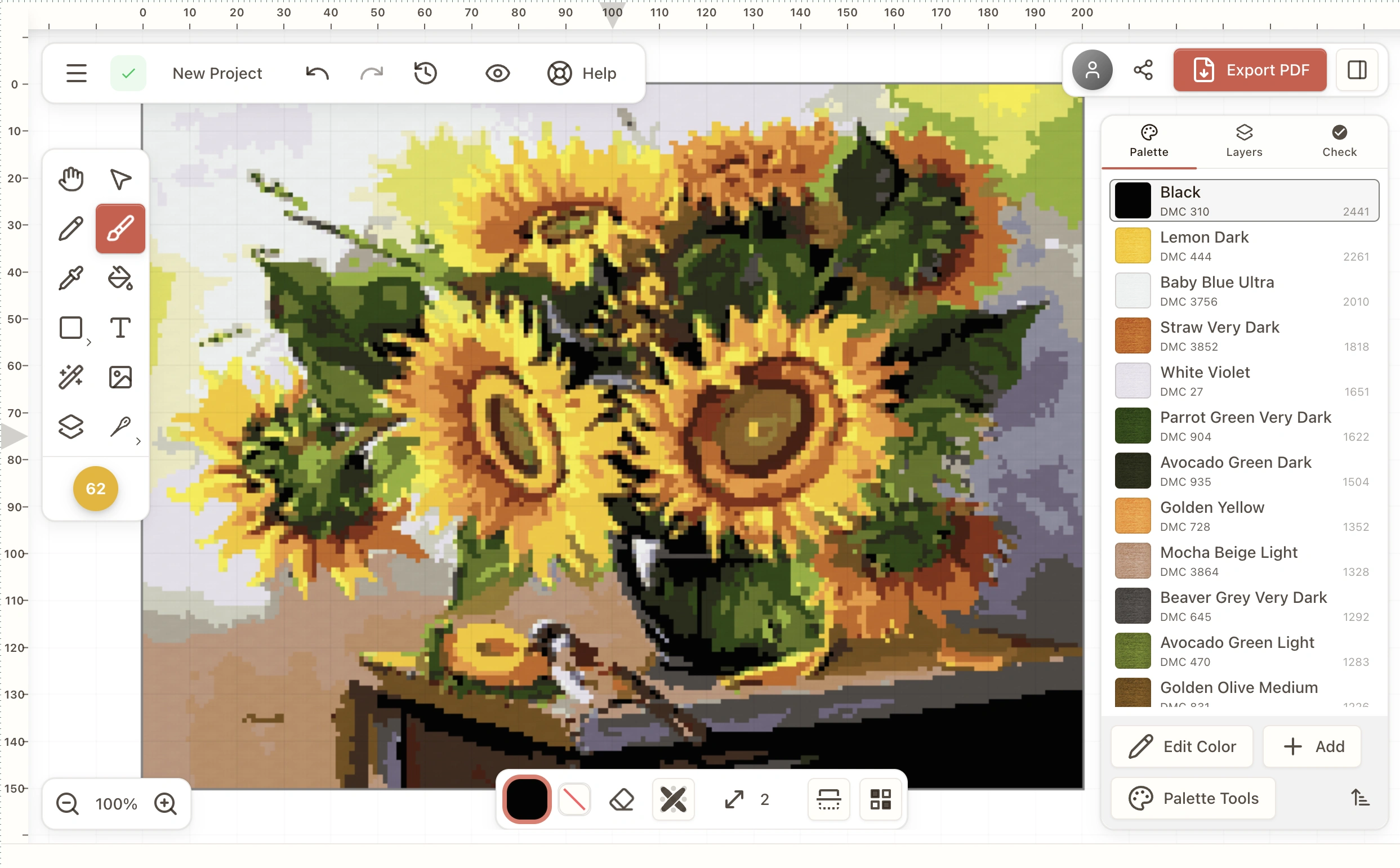
Stitchmate is a browser-based cross-stitch pattern editor built for stitchers who want clean, printable results without fiddly desktop software. It also charts needlepoint and diamond painting — the same tools, with each craft's own stitches, materials, and vocabulary — and converts a pattern between crafts in one step.
This handbook walks you through every feature — from importing a photo and tuning the palette, to drawing with the brush, selection, and shape tools, all the way to exporting a multi-page PDF ready for your hoop.
Each page focuses on one tool or concept, shows you exactly where to find it in the UI, and lists the keyboard shortcuts that make the workflow feel fast. Start with the 8-step happy path below, then explore individual sections at your own pace.
Start here
The 8-step happy path from “I have an image” to “I have a PDF I’d actually stitch”.
Getting Started
Find your way around Home: start a pattern from a photo, a PDF, a pattern file or a blank grid, and find your patterns, palettes, motifs, stash and tools.
Home (the screen Stitchmate opens on)Image Import
Turn a photo into a pattern in three steps: Photo (crop, straighten, erase the background), Pattern (size, threads, colors, detail, clean up), and PDF.
Home → Create → From an image, or Editor → Size & colors (top left)Editing Colors
Change colors without breaking your pattern: swap a thread everywhere or in a selection, merge look-alikes, show one color alone on the chart, and keep symbols in sync.
Right panel → PalettePalette Tools
Change your whole palette in one place: apply another palette or color style, switch thread brands, adjust color feel, merge down to fewer colors, and save palettes.
Palette → Palette toolsConfetti Cleanup Tool
Remove confetti (lonely speckle stitches) with a real-time brush, a previewed Auto pass, or one press in the Check tab. Show ConfettiScope to see hotspots at a glance.
Left toolbar → Clean Up Confetti / Right panel → CheckBrush Tool
BPaint stitches with a round brush. Fast fills, partial stitches with smart Merge, symmetry, two-color texture, and keyboard-precise placement.
Left toolbar → BrushSelection Tool
VSelect stitches so you can copy, fill, erase, expand, or hand them off to Transform.
Left toolbar → SelectionPDF Export
Export your cross-stitch pattern as a multi-page PDF with cover page, thread legend, pattern grid tiles, watermark, and branding.
Editor → ExportGet oriented
Navigation, visibility, and keeping your work structured.
Getting Started
Find your way around Home: start a pattern from a photo, a PDF, a pattern file or a blank grid, and find your patterns, palettes, motifs, stash and tools.
Home (the screen Stitchmate opens on)Canvas Navigation
Move around the pattern fast: zoom, drag, jump to fit, and get back to center instantly — on mouse, trackpad, or touch.
CanvasView Options
Control what you see on the canvas: pick a view preset, or customize symbols, grid, fabric, backstitch and rulers that count stitches or measure in centimeters or inches.
Top right → View (eye icon)Layers
Keep parts of your pattern separate: background, text, backstitch, experiments. Hide/show, reorder, duplicate, and merge layers when you're ready — all undoable.
Left toolbar → LayersSource Image Overlay
UShow your original photo or illustration as a faint overlay while you edit. Great for tracing, checking alignment, and comparing colors.
Left toolbar → OverlayKeyboard Shortcuts
Every keyboard shortcut in Stitchmate, grouped by where you use it: the editor tools, canvas navigation, colors, progress tracking, the import screens, and search fields.
Editor → Help → Keyboard ShortcutsCloud and Local Patterns
On the desktop app your patterns are files on your computer, with an optional copy in your account. What "linked" means, what the badges say, and what happens when you change a pattern in two places.
Help → How Cloud and Local Patterns WorkImport & color
Turn an image into a pattern, then tame the palette.
Image Import
Turn a photo into a pattern in three steps: Photo (crop, straighten, erase the background), Pattern (size, threads, colors, detail, clean up), and PDF.
Home → Create → From an image, or Editor → Size & colors (top left)PDF Import
Turn a chart PDF you bought into a pattern: compare the reading with your PDF, fix a thread, and start tracking it on any device.
Home → Create → PDF pattern · Desktop app: File → Import PDF Pattern…Editing Colors
Change colors without breaking your pattern: swap a thread everywhere or in a selection, merge look-alikes, show one color alone on the chart, and keep symbols in sync.
Right panel → PalettePalette Tools
Change your whole palette in one place: apply another palette or color style, switch thread brands, adjust color feel, merge down to fewer colors, and save palettes.
Palette → Palette toolsColor Styles
One Color Style picker for image import and Apply a Palette: saved palettes, the threads you own, monochrome, duotone and art styles, or a gradient you build.
Image import → Colors → Style, or Palette tools → Apply a PaletteSymbol Styles
Pick how the symbols on your printed chart look, from clear marks to tonal shading, shapes or letters. Keep the ones you like, ban the rest, and fix look-alikes.
Palette tools → Symbols, or PDF export → Chart pages → Symbol styleTools
The core edit tools you'll use every session.
Brush Tool
BPaint stitches with a round brush. Fast fills, partial stitches with smart Merge, symmetry, two-color texture, and keyboard-precise placement.
Left toolbar → BrushFill Tool
GFill large areas fast. Click once to paint a connected area, fill within a selection, or clear a region. Instant results, one-step Undo.
Left toolbar → FillGradient Tool
Blend two or more thread colors across a region. Drag to set direction, pick as many palette colors as you like, and let dithering do the shading.
Left toolbar → Fill dropdown → GradientShape Tool
RDraw clean geometric shapes in stitches — rectangles, circles, and more — filled or outlined. Perfect for borders, frames, labels, and geometric patterns.
Left toolbar → ShapeLine Tool
LDraw clean straight lines of stitches — perfect for borders, outlines, and pixel-art style edges.
Left toolbar → Shape dropdown → LineText Tool
TAdd lettering to your pattern — names, dates, labels, and short quotes — with a live preview. Choose a font, size, and style, then apply to convert it into stitches.
Left toolbar → TextSelection Tool
VSelect stitches so you can copy, fill, erase, expand, or hand them off to Transform.
Left toolbar → SelectionSelection Transform Tool
TMove, resize, rotate, or flip the stitches inside your selection — with a live preview. Press Enter to apply, Escape to cancel.
Left toolbar → Selection TransformConfetti Cleanup Tool
Remove confetti (lonely speckle stitches) with a real-time brush, a previewed Auto pass, or one press in the Check tab. Show ConfettiScope to see hotspots at a glance.
Left toolbar → Clean Up Confetti / Right panel → CheckBackstitch Tool
KAdd crisp outlines and detail lines on top of your stitches. Draw single lines or connected paths, edit points, and auto-outline color areas with one click.
Left toolbar → BackstitchWorkflow & export
Understand how tools interact, measure comfort, and ship the PDF.
Selection & Tools
How Brush, Fill, Shape, Text, Line, and Confetti Cleanup tools interact with the active selection. Edit only within the selected region.
General behaviorFLOW Score
Your pattern's stitching comfort score. The FLOW view shows which of its four parts holds the score back, the facts behind each one, and a fix you can press.
Left toolbar badge / Right panel → CheckPDF Export
Export your cross-stitch pattern as a multi-page PDF with cover page, thread legend, pattern grid tiles, watermark, and branding.
Editor → ExportExport presets
Save how your PDFs look and use it on any pattern. What a preset carries, what each pattern keeps, and what neither touches, listed from the app itself.
Editor → Export → PresetProgress Tracker
FMark stitches as you work, highlight one color, park threads, track backstitch per segment, and see how many evenings are left. Free, syncs across devices when signed in.
Editor top right → Progress · Library → Track progress