Free photo to diamond painting converterConvert a photo to a diamond painting pattern (free)
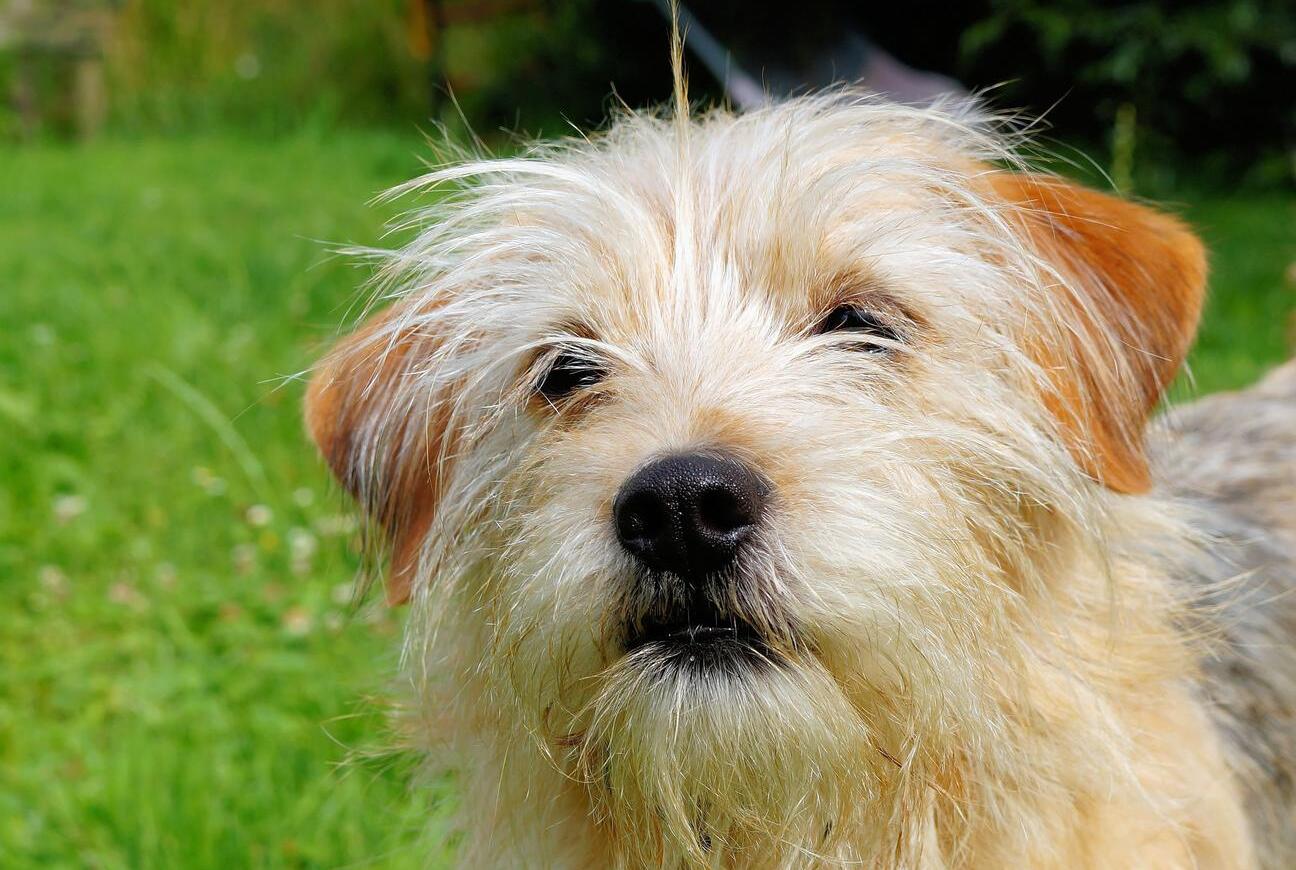



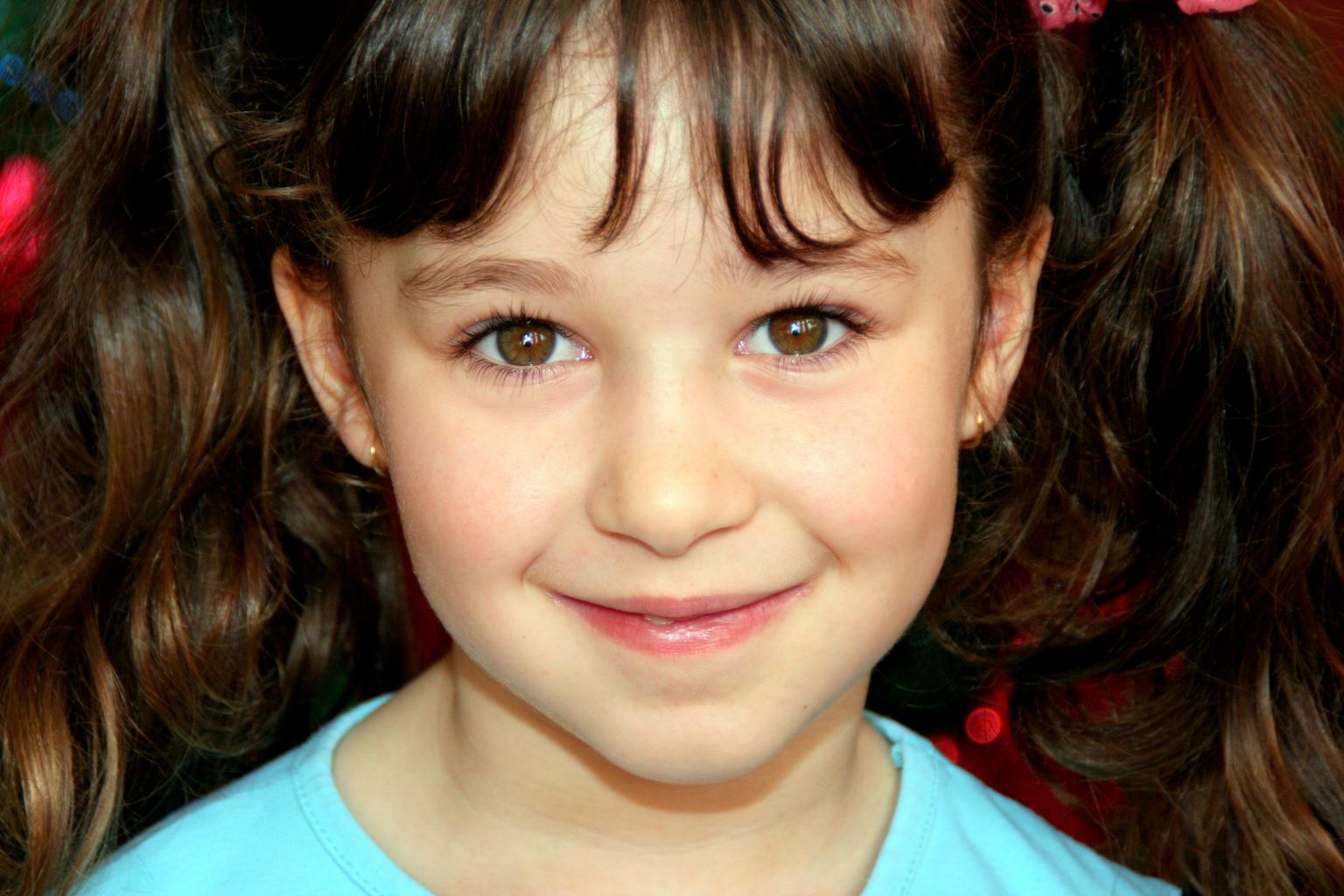


Round or square drills, DMC-matched colors, and a printable chart with the exact drill count for every color.
No download or sign up needed.
How to convert a photo to diamond painting
Upload your photo
Drop any JPEG, PNG, or WebP image. Crop and rotate to select the area you want as your diamond painting.
Choose your settings
Select round or square drills, set canvas size, and adjust the number of colors (30-80 recommended for diamond painting).
Preview & refine
See the converted pattern in real time. Use confetti cleanup to simplify. Edit individual cells if needed.
Download your chart
Export a printable PDF with symbol charts, a color legend with exact drill counts, and page navigation.
Round or square drills?
Same pattern, same colors, same zoom — the only thing that changes is the drill shape. Square drills sit flush with no gaps for a sharper mosaic finish. Round drills go down faster and leave a fine grid of gaps that reads softer on skin tones and skies.

Round drills — faster to place, forgiving of slight misalignment, softer overall texture.

Square drills — flush edges, crisper detail, a more mosaic-like finish.
You don't have to decide up front. The chart is identical either way — pick your drill shape when you order, or read the full breakdown in the guide to diamond painting drills.
Confetti cleanup, before and after
Photo conversions scatter isolated single drills across smooth areas — "confetti". They're miserable to place and they muddy the finished piece. One pass of confetti cleanup consolidates them into the surrounding color. Drag the handle to compare.


What you actually print
The export is a real working chart, not a preview image. Symbol pages carry row and column rulers so you never lose your place, and the legend lists every DMC code with the exact number of drills you'll need in that color.

Symbol chart — split across printable pages with rulers and page navigation.

Color legend — every DMC code, its symbol, and the drill count you need to buy.
Tips for great photo conversions
Start with a clear photo
High-resolution images with good lighting and a clear subject produce the best diamond painting patterns.
Fewer colors = easier project
30-50 colors works great for most diamond paintings. More colors add detail but increase complexity.
Run confetti cleanup
Photo conversions often produce scattered isolated drills. Confetti cleanup removes them for a much cleaner result.
Check the FLOW Score
The FLOW Score tells you how smooth and enjoyable the pattern will be to complete. Aim for 60+ for a pleasant experience.
Plan the project around your photo
Before you print, run the numbers through the diamond painting size calculator — canvas size, total drills, and bags to buy for square or round drills. Prefer to design cell by cell instead of converting? The diamond painting pattern maker starts from a blank canvas. And when the kit arrives, the DMC drill color chart matches every code on your drill bags — or the Diamond Dotz chart and the Dotz ↔ DMC conversion if your kit uses Dotz codes. New to the craft? Start with what diamond painting is and how to diamond paint. Same photo, different craft? The converter also makes cross stitch, needlepoint, fuse bead, and crochet graph patterns from the same upload.
Frequently asked questions
How do I turn a photo into a diamond painting?
Upload your photo, select 'Diamond Painting' as the craft type, choose round or square drills, adjust the canvas size and color count, then export as a printable PDF. The converter handles color matching and chart generation automatically.
How many colors should I use for a photo conversion?
For diamond painting, 30 to 80 colors typically works best. Fewer colors give simpler patterns that are faster to complete, while more colors preserve finer image details.
Should I choose round or square drills?
Square drills sit flush against each other with no gaps, giving a sharper, more mosaic-like finish that suits geometric designs and crisp edges. Round drills are faster to place and more forgiving of slight misalignment, and the small gaps between them give portraits and landscapes a softer look. Both use the same chart — you can decide after exporting.
What image formats are supported?
JPEG, PNG, and WebP are supported. For best results, use a high-resolution photo with good lighting and clear subjects.
Can I edit the pattern after converting?
Yes. After converting, use the editor's confetti cleanup to remove isolated drills, adjust colors, or redraw areas. You have full editing control before exporting.
What does the exported PDF include?
The PDF contains a symbol chart split across printable pages with row and column rulers, a color legend listing every DMC code with its symbol, and the exact drill count per color so you know how many of each to buy.
Is the photo converter free?
Yes. The basic converter is free and runs in your browser. Export PNG previews for free. Paid tiers unlock watermark-free PDF exports and larger canvas sizes.
Used Stitchmate? Tell others how it went.
Turn your favorite photo into a diamond painting
Upload any image and get a printable chart in minutes. No account required.