| You want to… | Do this |
|---|---|
| Find where you stopped last time | Look for your parking marks, or press N |
| See where the color in your needle goes | Click it in the colors panel |
| Find the last few stitches of a color on a big chart | Next stitch (N) |
| Keep your place in the row you're stitching | The Line tool (L) |
| Remember a thread you left hanging | A parking mark |
| Flag a stitch you need to unpick | A frog mark |
| Tick off outlines | Switch to Backstitch |
| Know how long the piece will take | How long is left |
| Catch up a project you started on paper | Mark all for each finished color in the colors panel |
Progress Tracker
Mark stitches as you work, highlight one color, park threads, track backstitch per segment, and see how many evenings are left. Free, syncs across devices when signed in.
- Shortcut
- F
- Where to find it
- Editor top right → Progress · Library → Track progress
Keyboard & modifiers
- F
- Open or close the progress tracker
- M
- Mark tool
- E
- Unmark tool
- I
- Pick color tool
- H
- Move (pan) tool
- P
- Marks tool (parking, frog, highlight)
- L
- Line tool: keep your place on a row
- U
- Measure tool
- N
- Ring the next stitch of the active color
- V (hold)
- Peek at the finished design
- Arrow keys
- Move the cursor
- Space
- Mark the cursor cell
- C
- Cycle the finished-stitch style
- Cmd+ZCtrl+Z
- Undo marks
- Cmd+Shift+ZCtrl+Shift+Z
- Redo marks
The progress tracker is for the stitching itself. You sit down with a chart and want three answers: where was I, what do I stitch next, and how much is left. Open a pattern in the tracker and the chart turns into a checklist that answers all three. It works on every craft Stitchmate makes, on a laptop, tablet or phone, and it's free. (The shortcut list calls it Follow Mode.)
Basics
- Open it with F, Progress at the top right of the editor, or Track progress on a pattern in your library.
- Pick the color in your needle in the colors panel. Everything else fades back so you can see where that color goes.
- Mark what you stitch by tapping a stitch or dragging across a block. Marked stitches show as done on the chart.
- Stop whenever you like. Every mark is saved the moment you make it.
Nothing you do in the tracker changes the pattern itself, so you can't repaint a stitch by accident.
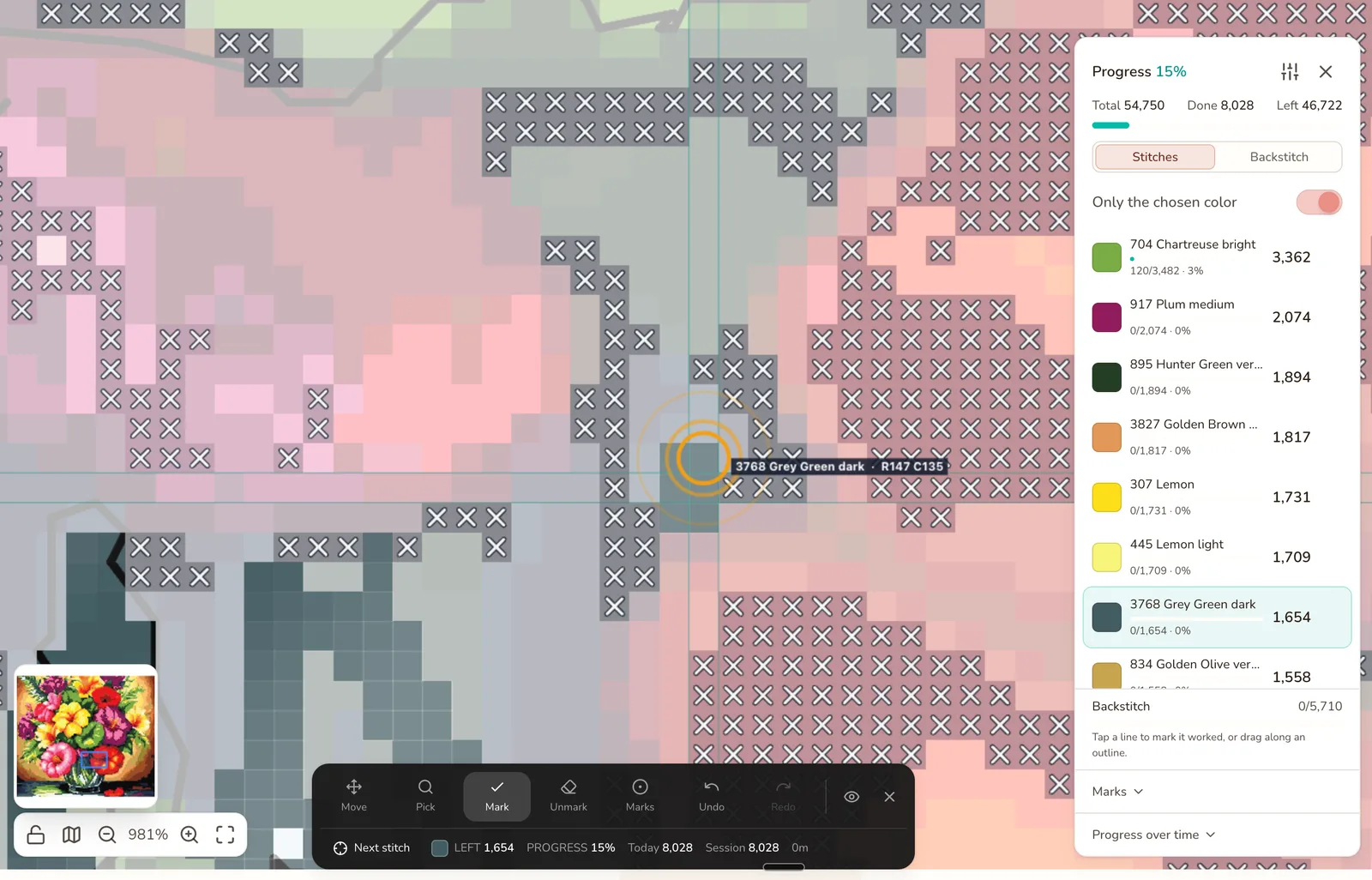
One color highlighted, its next stitch ringed, and how much of each color is left in the panel on the right.
Opening and closing the tracker
From the editor, press F or click Progress at the top right. From your library, open a pattern's details and choose Track progress. Once you've marked anything, the pattern's card in the library shows a progress bar, so you can see at a glance how far along each project is.
Bought a chart as a PDF? The tracker's Settings has Import a PDF pattern, which reads the chart into a pattern you can track. See PDF Import.
Close the tracker with F again or the X. There's nothing to save.
Marking what you stitched
With the Mark tool (M), tap a stitch to mark it done, or drag across a block you've just finished. Most of an evening is spent with this one tool.
The other tools in the toolbar:
| Tool | Key | Use it to… |
|---|---|---|
| Move | H | Pan around the chart without marking anything |
| Measure | U | Count a run of stitches, or drag to measure. Marks nothing |
| Line | L | Keep your place on a row and work it run by run |
| Pick | I | Tap a stitch to make its color the active one, then go back to Mark |
| Mark | M | Mark stitches done |
| Unmark | E | Clear stitches you marked by mistake |
| Marks | P | Place parking, frog, and highlight marks |
Two things that protect your work:
- Marking never toggles. Tapping a marked stitch again does nothing, so an accidental double tap can't undo your evening. To clear stitches use Unmark, a right-click, or Undo.
- Only the chosen color is on by default. With a color picked, a drag across a busy area marks only that color's stitches. Turn it off to mark everything under your finger.
Keeping your place in a row. If you stitch row by row, choose Line (L) and tap the row you're on. The tracker holds a line across it, like a ruler laid on a paper chart. ↑ ↓ (or [ ]) move to the previous or next row, ← → move along it, Enter marks the run you just stitched and moves on, and Esc lifts the line.
Undo and redo (Cmd/Ctrl+Z, Cmd/Ctrl+Shift+Z) step back through your marks one at a time. On a keyboard you can also move a cursor with the arrow keys and mark the cell under it with Space. Hold V to peek at the finished design, and press C to change how finished stitches are drawn.
What's left, color by color
The colors panel (a sheet at the bottom on a phone) is your checklist. At the top you see the whole pattern: total stitches, how many are done, and how many are left. Below that, every color with how many stitches it has left and how far along it is. A color never shows 100% while a single stitch of it remains; it stops at 99% until the last one is marked.
- Click a color to work on it. The rest of the chart fades back and the toolbar shows how many stitches of that color are left.
- Sort by what's left or by total to decide what to thread next.
- Stitches / Backstitch switches between tracking stitches and outlines (see Backstitch).
- Marks lists your parking, frog, and highlight marks so you can jump to them.
- Progress over time opens your stats (see How long is left).
Finding the next stitch
On a big chart, the last few stitches of a color are easy to miss. Press N or tap Next stitch and the tracker rings the nearest stitch of the active color you haven't worked yet, with its row and column. Stitch it, press N again, and the ring moves on.
Parking, frog, and highlight marks
These are for remembering where you were. Choose the Marks tool (P) and tap a cell to place one:
- Park (in one of four corners: ↖ ↗ ↙ ↘) marks a thread you've left hanging so you can come back to it. Four corners because on a full-coverage chart several parked threads can end up near the same square.
- Frog flags a stitch you need to unpick ("rip it, rip it").
- Free highlight marks the block you're working on right now.
Tap the same cell with the Marks tool to lift the mark. The Marks list in the colors panel shows every mark on the chart, so next session you can jump straight back. Marks work on every craft, because they mark a place rather than a stitch.
Backstitch
On cross stitch and needlepoint patterns you can tick off outlines too. Switch the colors panel from Stitches to Backstitch and the list shows your outline colors instead, each with its own count of line segments.
- Tap a line to mark that segment worked, or drag along an outline to mark every segment you cross. Drag with Unmark (or the right mouse button) to clear the same way.
- With a color picked and Only the chosen color on, a drag along a mixed outline marks only that color's lines.
- Worked lines change color, and the lines you still have to stitch in the active color glow, so the gaps are easy to spot.
- Each outline color has mark-all and clear-all, and Undo works exactly as it does for stitches.
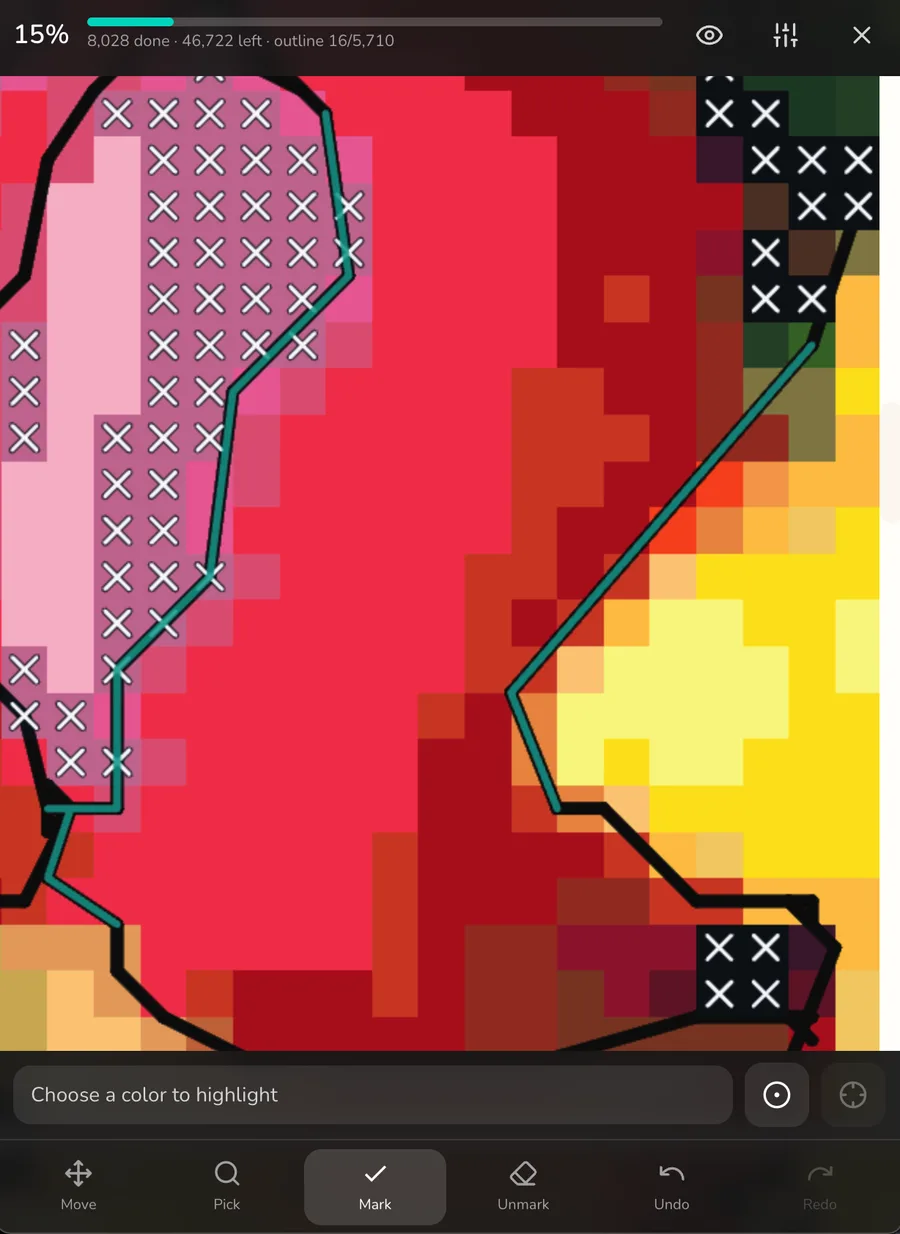
Tracking backstitch on a phone. The teal lines are done, and outline segments are counted separately from stitches.
Fractional stitches
A square can hold more than one stitch, a quarter and a three-quarter for example. You mark those one stitch at a time: one tap per stitch, and the square counts as finished after the last one. The square still counts once in the totals, so the numbers at the top stay honest. This works on cross stitch and needlepoint patterns.
How long is left
Every mark is timestamped, so the tracker can tell you how your project is going. Open Progress over time in the colors panel:
- Finish estimate, such as "about 12 evenings left". It's based on your pace on the days you actually stitched, so one long Saturday doesn't throw it off, and it's given in evenings rather than a calendar date.
- Streak of days you've stitched. Missing a single day doesn't break it.
- Sessions: what you did each time you sat down, with a summary when you leave: stitches, time, and pace.
- Calendar showing the days you stitched and how much.
While you work, the toolbar keeps a running count: stitches left in the active color, overall progress, today's stitches, this session's stitches, and a session timer.
Your progress on every device
- Saved as you go. Every mark is saved on your device first, so marking never waits for the internet.
- Signed in, it follows you. Mark on your laptop in the evening and the same progress is on your phone the next day. If two devices both marked stitches while apart, both sets of marks are kept, and clearing stitches on one device isn't undone by an older copy on another.
- Backup and restore. The tracker's Settings can save your progress to a file and restore it later. A backup only restores onto the pattern it came from.
- Editing a pattern you've started. Marks are tied to grid positions counted from the top-left corner. Stitchmate warns you before you edit a pattern with progress, because resizing from the top or left shifts every mark.
Stitching with your phone
On a phone the tracker is laid out for one hand while the other holds the hoop: your progress along the top, the chart in the middle, and a sheet at the bottom where you choose the color to highlight, find the next stitch, and switch tools. The screen stays awake while the tracker is open. Pinch to zoom, pan with two fingers, and mark with one.
Tips & gotchas
- Pick before you mark. With the color in your needle active and Only the chosen color on, you can drag freely across a busy area and only that thread gets marked.
- Use Pick (I) as an eyedropper. Tap the stitch you're about to work; its color becomes active and you're back on Mark.
- Park before you stop. A parking mark on every hanging thread makes the next session start in seconds.
- Catching up an old project? Mark all on each finished color is faster than dragging over every stitch.
- Change how the chart looks in the tracker's Settings: how strongly other colors fade, row guides, and how finished stitches are drawn.
Known limits
- Opening needs a connection. Once a pattern is open, marks are saved on your device and sync when you're back online.
- PDF charts need symbols. A designer's chart PDF drawn with symbols can be imported and tracked like any other pattern (early access, free, sign-in required). Scans, and PDFs that are only a picture of the chart, can't be read yet. For those, see the Pattern Keeper comparison.
- No Pattern Keeper progress import yet.
- Backstitch and fractional tracking are cross stitch and needlepoint only. Diamond painting, fuse beads, and C2C have no outlines or partial stitches to track.
For an overview rather than the manual, see the stitch counter page.
Guides and free tools
How Long Does Cross Stitch Take? 40–200+ Hours (Realistic Guide)
Most stitchers average 100–200 stitches per hour — but the real answer depends on three things most time estimates ignore.
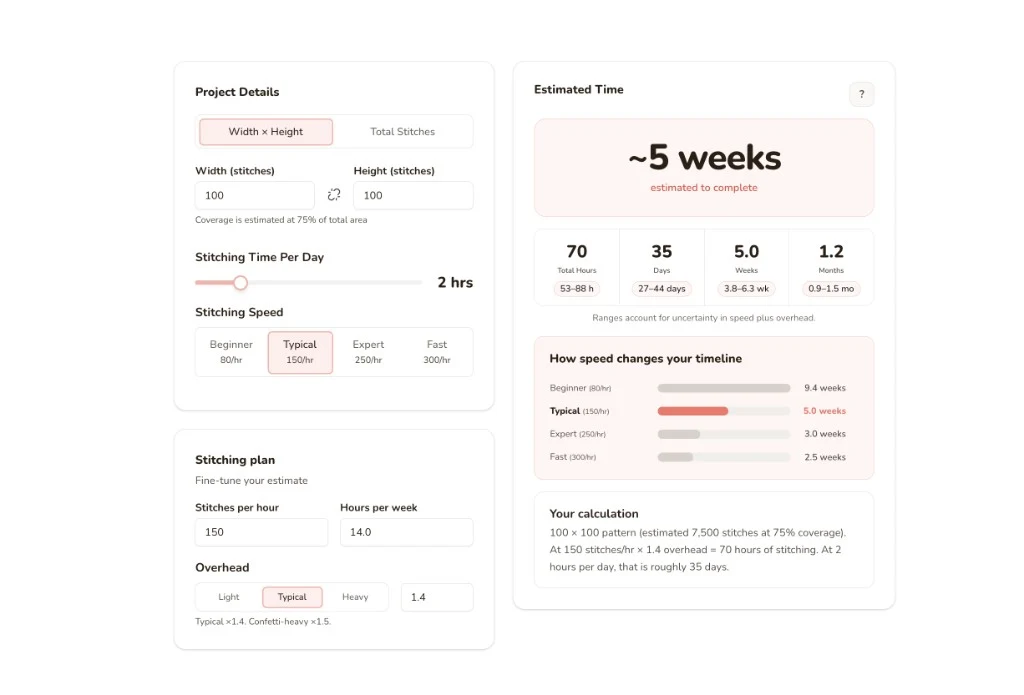
Cross Stitch Time Calculator
How long will your cross stitch take? Get a realistic estimate that includes overhead — thread changes, counting, breaks, and mistakes.

Track your cross stitch PDF on any device
Pattern Keeper is Android-only. Drop a cross stitch PDF you bought and Stitchmate reads the chart and key into a pattern you can track on any device. Early access, free.