| Style | What it looks like | Good for | Plus? |
|---|---|---|---|
| Clear | Mixed shapes and marks, easy to tell apart. The default. | Almost any pattern | Free |
| Tonal | Darker threads get heavier symbols, so the chart reads like a sketch | Portraits, landscapes, anything with lots of shading | Plus to apply |
| Shapes | Solid, playful shapes, no letters or numbers | Small, modern pieces and charts for beginners | Plus to apply |
| Letters & Numbers | One letter or digit per color, never shapes | Large print, and stitchers who call out colors by name | Plus to apply |
| Classic | The original symbol order | Patterns made before styles, kept as they were | Free |
Symbol Styles
Pick how the symbols on your printed chart look, from clear marks to tonal shading, shapes or letters. Keep the ones you like, ban the rest, and fix look-alikes.
- Where to find it
- Editor → Palette tools → Symbols · PDF export → Chart pages → Symbol style
Basics
On a printed chart, every color gets its own symbol. When you stitch from a black-and-white printout, the symbol is the only thing that tells one thread from another. One symbol per color, and every symbol different.
Different isn't always enough, though. Two colors that touch on the chart need symbols you can't mix up at a glance. Put a ◇ next to a ◆ in a sky full of blues and you'll be unpicking by evening.
A symbol style decides which symbols the chart uses. Clear is the default and suits most patterns. The others are there for a particular kind of chart or a particular kind of stitcher: shading you can read like a sketch, friendly shapes for a small modern piece, or letters you can say out loud.
Where to find it
There are two ways in, and both open the same Symbols panel:
- In the editor: open Palette tools at the bottom of the palette and choose Symbols.
- In the PDF export: open Chart pages, then Symbol style › in the Symbols card.
The style belongs to the pattern, not to the PDF. Change it in either place and the editor, the progress tracker, the PDF and the Pattern Keeper file all show the same symbols. There's no way for the chart you print to disagree with the one on screen.
Comparing the styles
Here is the same 22 × 14 piece of Starry Night in each style, so you can compare them side by side.
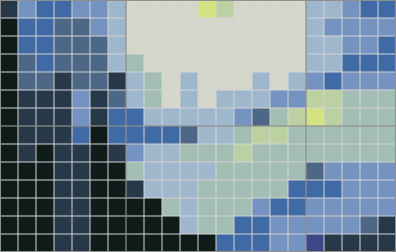
The same 22 × 14 piece of Starry Night in thread colors. Every chart below shows this piece.
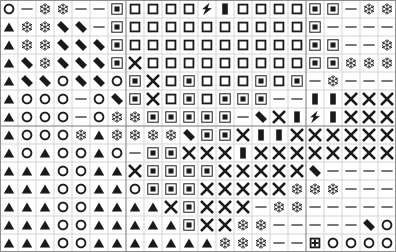
Clear. Shapes, outlines and marks mixed together. Touching colors get symbols that look nothing alike.
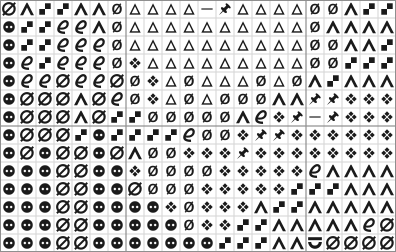
Tonal. Dark threads get heavy symbols and light ones get open ones. The swirls show even in black and white.
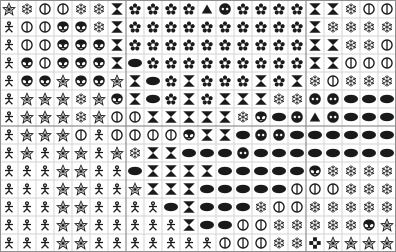
Shapes. Solid, playful shapes and no letters or numbers. Easy to spot on a small chart.
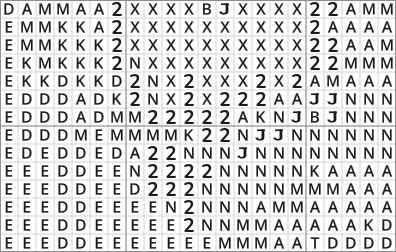
Letters & Numbers. One letter or digit per color, and never a shape. Easy to say out loud: "now the B's". On a big palette, two-digit numbers take over once the single characters run out.
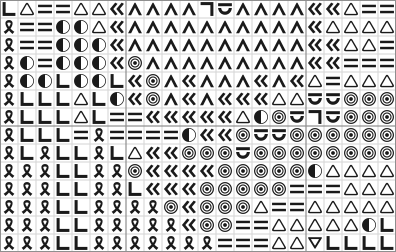
Classic. The original order, from before there were styles. Compare it with Clear to see what the styles change.
In the panel, Letters & Numbers is labeled ABC & 123. Anyone can preview every style on the chart. Tonal, Shapes and Letters & Numbers need a Plus Pass or an unlocked pattern to apply.
A few things to know about each:
- Tonal: Shuffle changes the shapes but keeps the shading, so dark threads stay heavy.
- Letters & Numbers: never falls back to shapes. A pattern with more colors than letters goes on to numbers.
- Classic: pick it to put a pattern back the way it was before styles existed, for example to match a chart you've already printed.
Trying styles on
Click a style and the chart changes right away, so you can judge it on your own pattern before you commit. The panel tells you how much it touches, for example Changes 18 of 24: 18 of your 24 colors would get a new symbol.
Don't like one of the symbols it picked? Press Shuffle for another set in the same style. Press it as often as you like.
Apply keeps the new symbols, all as one undo step, so Cmd/Ctrl+Z puts every symbol back at once. Cancel leaves nothing behind: the pattern is exactly as it was.
Keeping a symbol
Some symbols you want to keep. Maybe you've learned that ♥ is the red, or you've already stitched half of it.
Under Each color, before and after, tap a color to keep its symbol. A kept color shows a small lock. Shuffle and styles leave it alone, and the panel counts how many you've kept. Tap it again to let it change.
A symbol you picked yourself in Edit color is kept automatically. Picking a style won't undo your choice.
Symbols you never want
Some symbols just don't work for you: too fiddly to read, too much like another, or hard on tired eyes. Switch them off for good.
- In the Symbols panel: open Never used, press Edit, and tap each symbol you never want. Tap it again to use it again.
- In Edit color: in the symbol picker, choose Never use this symbol.
This list is yours, not the pattern's. It applies to every pattern you make, and it follows you to other devices signed in to the same account. In the desktop app it syncs when cloud sync is on.
Colors that already have a symbol you've switched off keep it until you pick a style again or press Fix (see below). Nothing changes on your chart behind your back.
Look-alike symbols
Two colors that touch on the chart, with symbols that look alike, are easy to misread when you stitch from paper. Stitchmate looks for them for you.
- In the Symbols panel: the badge next to the style says No look-alikes, or how many look-alike pairs the pattern has.
- In the Check tab: the Symbols section lists each pair. Fix gives the smaller color of each pair a new symbol. Not now leaves them as they are.
- In the palette: a color whose symbol looks like a touching color's gets a small ≈ mark. Point at it to see which color.
The Check tab is also where the FLOW score lives, so it's a good last look before you print.
Empty squares
Squares with no stitch can print Blank or with Dots. Dots mark the empty squares, so blank areas are easy to count: you can see at a glance how many squares to skip before the next stitch.
You'll find the same choice in three places:
- View → Customize… in the editor
- Chart pages in the PDF export
- the PNG export
The progress tracker follows the editor's choice.
Symbol size
How big the symbols are inside each square on screen: View → Customize… → Symbol Size, from 50 to 120%. That's the same range as the PDF, so you can try a size on screen first.
It only changes the editor. The PDF has its own Symbol size in the Symbols card on Chart pages; see PDF Export.
Tips & gotchas
- Clear is a good default. Try another style when you have a reason: lots of shading, a beginner, or someone reading the chart aloud.
- Print one page before you print them all. Symbols that look fine on screen can feel cramped on paper.
- Keep first, then shuffle. Lock the symbols you like, then Shuffle the rest as often as you like.
- Restyling after you've started stitching? Keep the colors you've already worked, so your printed pages still match.
- Changed your mind? Apply is one undo step, so Cmd/Ctrl+Z brings back every old symbol.
- Never used is personal. Switching a symbol off doesn't change charts you've already sent to anyone.
Guides and free tools
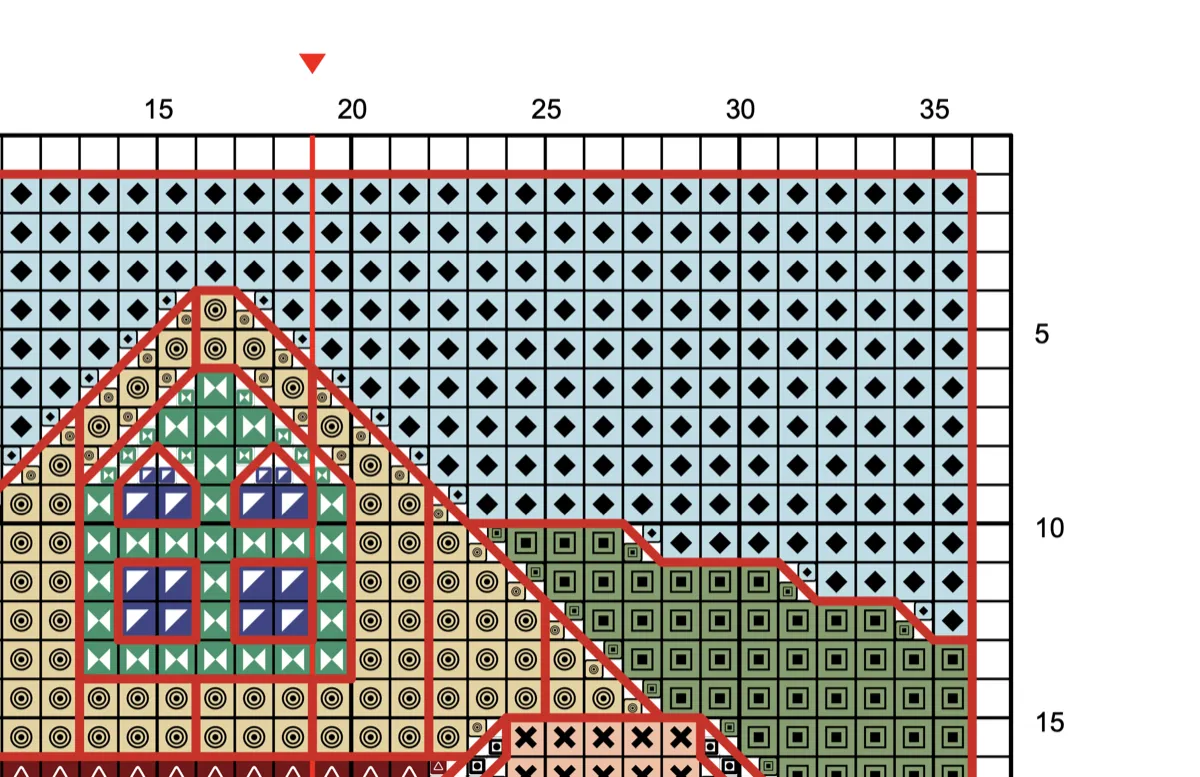
How to read cross stitch patterns: symbols and key
How to read cross stitch patterns: what the symbols mean, how the key works, the grid, stitch types, multi-page charts, and paper vs digital. Beginner guide.