How to Turn Pixel Art into a Cross Stitch Pattern
Pixel art and cross stitch are the same grid — one pixel, one stitch. Here is how to convert sprites and original pixel art into clean, stitchable patterns without losing detail.
Pixel art and cross stitch are basically the same thing — a grid of colored squares that form an image. One pixel, one stitch. No blending, no gradients, no guesswork. That's why pixel art converts to cross stitch more cleanly than any other image type.
But "cleanly" doesn't mean "automatically." Most pattern converters treat pixel art like a photograph — reducing colors, adding dithering, smoothing edges — and destroy the very thing that made your pixel art look good in the first place.
Here's how to convert pixel art properly, whether you're working with video game sprites, original artwork, or something you made in Aseprite last weekend.
Why pixel art makes the best cross stitch patterns
The connection between pixel art and cross stitch goes deeper than a shared grid.
Both mediums work within tight constraints — limited colors, fixed resolution, no anti-aliasing. A skilled pixel artist and a skilled pattern designer solve the same problem: how to suggest detail and depth using nothing but flat colored squares.
This means pixel art translates to cross stitch with almost no quality loss. A photograph has to be dramatically simplified to become a pattern. Pixel art is already there.
Some practical advantages:
- Predictable stitch counts. A 32x32 sprite is exactly 1,024 stitches. No surprises.
- Clean color blocks. Each color forms intentional shapes, so there's very little confetti (scattered single stitches that are a pain to work).
- Small, fast projects. A 16x16 character takes an afternoon. A 64x64 scene takes a weekend. Great for gifts and quick wins between larger projects.
- Perfect for beginners. Low color counts, small sizes, and clear shapes make pixel art patterns ideal first projects.
The upscaling problem (and why most converters get it wrong)
Here's the thing most guides skip: the pixel art you find online almost never has 1 pixel = 1 pixel.
When someone shares a sprite on Reddit, Twitter, or a sprite-ripping site, the image is usually upscaled — each original pixel blown up to a 2x2, 3x3, or even 8x8 block so it's visible at normal viewing sizes. A 32x32 sprite might be saved as a 256x256 image.
If you feed that upscaled image into a standard photo-to-pattern converter, it sees a 256x256 image and tries to create a 256x256 pattern — four times wider and taller than it should be. Even worse, some upscaling methods (especially screenshots from emulators or browsers) introduce anti-aliasing: blended pixels along the edges that create dozens of extra colors that shouldn't be there.
The result? A pattern that's too large, full of unnecessary colors, and oddly blurry where it should have crisp edges.
What you actually want is the opposite: detect the upscale factor, downscale back to the original resolution (nearest-neighbor, not bilinear), and then convert 1:1.
Stitchmate's pixel art mode handles this automatically. When you upload an image and select "Pixel Art," it analyzes the pixel structure, detects if the image has been upscaled, and downscales it back to the true resolution before converting. One pixel becomes one stitch — as it should be.
Where to find pixel art for cross stitch
Video game sprites
The most popular source, and for good reason — decades of beautiful pixel art, already designed to read clearly at tiny sizes.
- The Spriters Resource — the largest sprite-ripping community. Thousands of games, well-organized by console and title.
- Sprite Database — another comprehensive archive, good for finding specific characters.
- The VG Resource — includes sprites, textures, models, and sounds across multiple sites.
A note on copyright: Using game sprites for personal cross stitch projects is generally fine. Selling patterns based on copyrighted characters is not — unless you have explicit permission from the rights holder. Many indie developers are happy to grant permission if you ask, but larger studios typically won't respond. If you're designing patterns for sale, original pixel art or public domain sources are the safer path.
Original pixel art
If you want to stitch something nobody else has, or if you plan to sell patterns, original pixel art is the way to go.
- Lospec — a pixel art community with a gallery, color palette database, and tutorials. Many artists share work under Creative Commons licenses — check each piece's license before using it.
- itch.io pixel art assets — game asset packs, many free or pay-what-you-want. Some include commercial licenses.
- OpenGameArt.org — free game art under open licenses (CC0, CC-BY, CC-BY-SA). Great for patterns you want to sell.
- DeviantArt and ArtStation — search for pixel art, but always check and respect the artist's license. Contact them before using their work commercially.
Make your own
You don't need to be an artist. Pixel art tools are designed for working at small scales, and the grid constraint actually makes it easier to get started than freeform drawing.
- Aseprite — the gold standard for pixel art. One-time purchase. Layers, animation, excellent palette tools.
- Piskel — free, browser-based. Good for quick sprites.
- Pixilart — free, browser-based, with a community gallery.
- GIMP — free, full image editor. Set up a small canvas (32x32 or 64x64), zoom in, and draw pixel by pixel with the pencil tool set to 1px.
- Graph paper — seriously. Sketch your design on paper first, then digitize it. Many experienced pixel artists still start this way. Our printable graph paper prints at your exact fabric count, and if the sprite is going onto a knitted sweater, the knitter's version has cells shaped like stitches so it won't come out squashed.
Step by step: converting pixel art in Stitchmate
1. Upload your image
Open the photo-to-pattern converter and drop your pixel art file in. Supported formats: PNG (recommended — lossless), GIF, BMP, WebP, and JPEG (avoid JPEG for pixel art if possible — the compression adds color artifacts).
Save your pixel art as PNG, not JPEG. JPEG compression blurs sharp edges and introduces color noise around every pixel boundary. If the only version you have is a JPEG, it'll still work — Stitchmate's pixel art detection handles it — but a lossless format will always give you better results.
2. Select "Pixel Art" mode
Stitchmate's import wizard shows three modes: Photo, Illustration, and Pixel Art. For most pixel art images, it auto-detects the correct mode — but always double-check.
Pixel art mode changes several things under the hood:
- Disables dithering. Dithering blends colors using alternating pixels, which is great for photos but destroys the hard edges that define pixel art.
- Disables confetti cleanup. In a photo conversion, isolated single stitches are usually artifacts. In pixel art, every pixel is intentional.
- Hides the detail/sharpening slider. Sharpening creates halos around edges — the opposite of what you want.
- Detects and reverses upscaling. If your image is an upscaled version of a smaller original, Stitchmate finds the true pixel grid and downscales to it.
3. Choose your size
In pixel art mode, you get two options:
- Original — keeps the exact dimensions of the source image (after downscaling, if detected). A 32x32 sprite becomes a 32x32 pattern. This is usually what you want.
- Custom — lets you scale up or down. Useful if your sprite is very small (say, 16x16) and you want a larger finished piece.
Check the finished size readout to make sure the physical dimensions work for your intended fabric count. A 32x32 pattern on 14-count Aida is about 5.8 x 5.8 cm (2.3 x 2.3 inches) — quite small. On 18-count, it's even smaller at 4.5 x 4.5 cm. You might want to scale up to 48x48 or 64x64 for a finished piece that's easier to frame.
Use the fabric calculator to work out finished sizes for your chosen fabric count.
4. Handle colors
This is where pixel art mode really shines. You'll see a "Keep original colors" switch:
- On (default for clean pixel art): Preserves every color from your source image and maps each one to the nearest thread color in your chosen brand. A 12-color sprite becomes a 12-color pattern.
- Off: Shows a color count slider so you can reduce the palette. Useful if your pixel art uses 40+ colors and you want to simplify for stitching. See our guide on how many colors work best for general advice.
Stitchmate auto-detects whether your image has a "clean" palette (a small number of distinct colors with clear boundaries) or a "noisy" one (many colors, possibly from JPEG compression or anti-aliasing). Clean palettes default to keeping originals; noisy ones suggest a reduced count.
Choose your thread brand before converting. Different brands have different color ranges, and a color that maps beautifully to DMC might not have a close match in Anchor or Cosmo. You can switch brands after conversion too, but you'll get the best results by choosing first. Stitchmate supports 60+ thread brands — browse them all in the DMC color chart and related brand pages.
5. Review and adjust
Once the conversion is done, check a few things:
- Are the colors right? Thread colors are approximations of the digital originals. Some pixel art uses very saturated or neon colors that don't have close matches in any thread brand. You might need to swap a few colors manually in the editor's palette panel.
- Is the size right? Check the finished size against your intended frame or hoop.
- Does the transparent background need handling? Many sprites have transparent backgrounds. Stitchmate treats transparent pixels as empty (no stitches), which is usually what you want — you'll stitch the character and leave the background as bare fabric.
6. Save as PDF
When you're happy, download the PDF. It includes the full grid with symbols, a color legend with thread codes and stitch counts, and everything Pattern Keeper needs if you prefer to stitch digitally.
Common pixel art conversion problems (and how to fix them)
Extra colors appearing from nowhere
Cause: JPEG compression or anti-aliased upscaling has introduced blended pixels along edges.
Fix: If possible, find a PNG version of the image. If you're stuck with a JPEG, Stitchmate's pixel art detection will handle most of the noise, but you may need to turn off "Keep original colors" and set a manual color count to clean things up. Or import with the colors as-is, then use the editor's palette tools to merge similar colors afterward.
The pattern is much larger than expected
Cause: The image was upscaled (a 32x32 sprite saved as a 256x256 image).
Fix: Make sure you're in pixel art mode — Stitchmate detects upscaling and reverses it. If auto-detection didn't catch it (rare, but possible with unusual scale factors), switch to "Custom" size mode and manually enter the dimensions you want.
Neon or very saturated colors look wrong as thread
Cause: Real thread can't reproduce the full RGB gamut. Electric blue, hot pink, and lime green from screen-based pixel art often map to slightly muted thread equivalents.
Fix: This is a real limitation of the medium, and there's no perfect solution. A few things help:
- Try different thread brands — some have slightly more saturated ranges than others.
- Swap individual colors manually. Sometimes a color that's technically "further" in perceptual distance actually looks better in context.
- Accept the shift. Thread has a physical warmth and texture that screens don't, and many stitchers find the slightly muted version looks better in real life than they expected.
Small details disappearing
Cause: Very small sprites (8x8 or 12x12) sometimes have single-pixel details that are hard to stitch — a one-stitch highlight in an eye, for example.
Fix: These actually stitch just fine. The concern is usually about stitching a single stitch of a color that appears only once in the pattern, which means cutting a length of thread for one stitch. That's normal for pixel art patterns. If it really bothers you, you can edit the pattern afterward to replace that stitch with a neighboring color — but test first. That single pixel might be doing more work than you think.
Size and fabric planning for pixel art
Unlike photo conversions where you choose a target size, pixel art has a natural size — the number of pixels in the source. Here's a quick reference for common sprite sizes:
| Sprite size | Stitches | On 14-count Aida | On 18-count Aida | Rough time estimate |
|---|---|---|---|---|
| 16x16 | 256 | 2.9 x 2.9 cm (1.1 x 1.1 in) | 2.3 x 2.3 cm (0.9 x 0.9 in) | 1-3 hours |
| 32x32 | 1,024 | 5.8 x 5.8 cm (2.3 x 2.3 in) | 4.5 x 4.5 cm (1.8 x 1.8 in) | 4-8 hours |
| 48x48 | 2,304 | 8.7 x 8.7 cm (3.4 x 3.4 in) | 6.8 x 6.8 cm (2.7 x 2.7 in) | 8-16 hours |
| 64x64 | 4,096 | 11.6 x 11.6 cm (4.6 x 4.6 in) | 9.0 x 9.0 cm (3.5 x 3.5 in) | 16-30 hours |
| 128x128 | 16,384 | 23.2 x 23.2 cm (9.1 x 9.1 in) | 18.1 x 18.1 cm (7.1 x 7.1 in) | 60-120 hours |
A few things to keep in mind:
- Small sprites on high-count fabric get tiny fast. A 16x16 sprite on 18-count is barely 2 cm across — fine for a keychain charm, but too small to frame on its own. Consider scaling up to 2x (32x32) or stitching on lower-count fabric.
- Larger pixel art scenes (100x100+) are serious projects. They look incredible when finished, but budget your time accordingly.
- Leave margin space. Add at least 5-8 cm (2-3 inches) of unstitched fabric around all edges for framing. The fabric calculator accounts for this automatically.
For more on estimating your project time, see the cross stitch time calculator.
Tips for designing pixel art specifically for cross stitch
If you're creating original pixel art with the intention of stitching it, a few craft-specific considerations will save you time at the hoop. (If you'd rather skip the pixel-art step and draw straight onto the stitch grid, the design-from-scratch guide covers layout, borders, lettering, and color in the order that works.)
Limit your palette to 15 colors or fewer. Every color means a different thread, and thread changes are the slowest part of cross stitch. Professional pattern designers often work with 8-12 colors for small-to-medium pieces. More is fine for complex scenes, but each additional color adds time.
Avoid one-pixel color accents unless they're essential. A single stitch of a unique color means cutting thread, threading the needle, stitching once, and securing the thread. If that one pixel isn't doing critical work (like an eye highlight), consider using a neighboring color instead.
Think about color proximity. Colors that appear next to each other on the fabric need to be visually distinct — they can be closer in value than you'd think on screen, because the texture of the stitches adds contrast. But two very similar mid-tones next to each other will blend into one from any distance.
Design at actual size. If you're planning a 32x32 pattern, create a 32x32 canvas — not a 320x320 canvas where you draw at 10x zoom. Working at true resolution forces you to make every pixel count, which is exactly the right mindset for a stitchable design.
Consider backstitch for outlines. Pixel art often uses dark outlines that are one pixel wide. These work as full stitches, but if you want crisper lines — especially at small sizes — consider converting outlines to backstitch instead. You can do this in Stitchmate's pattern editor after importing.
Going further: multi-sprite compositions
One of the joys of pixel art cross stitch is combining multiple sprites into a single piece. A lineup of your favorite characters, a scene from a retro game, or a collection of food sprites arranged on a kitchen towel — the possibilities are genuinely endless.
A few practical tips:
- Convert each sprite separately so you can position them independently in the editor.
- Use a consistent scale. If you're combining sprites from different games or artists, make sure they're all at the same pixel density. A 16x16 character next to a 32x32 one will look awkward unless the scale difference is intentional.
- Plan your fabric color. Most sprites have transparent backgrounds, so your fabric color becomes the background. White Aida is standard, but black Aida makes bright sprites pop dramatically. Colored fabric (sage green, navy, cream) can add a lot of character.
FAQ
Can I convert any pixel art into a cross stitch pattern?
What's the best fabric count for pixel art cross stitch?
Do I need to use DMC thread?
Can I sell patterns made from video game sprites?
What's the difference between pixel art mode and photo mode in Stitchmate?
Can Stitchmate handle animated pixel art (GIFs, sprite sheets)?
What about perler beads, diamond painting, or other pixel crafts?
Convert Your Pixel Art Now
Drop in your sprite or pixel art and get a stitch-perfect pattern — one pixel, one stitch, exact colors.
Open the cross stitch pattern makerNo account required. Works in your browser.
Related Guides & Tools

How to Convert a Photo to a Cross Stitch Pattern
The complete guide to photo conversion — color reduction, dithering, confetti, and getting a stitchable result.
What Is Confetti in Cross Stitch?
Why scattered stitches slow you down and how to reduce them — less relevant for pixel art, but useful to understand.
How Many Colors for a Cross Stitch Pattern?
Why 15-30 colors is often the sweet spot — and why pixel art usually stays well under that.
What Is Aida Count?
How fabric count affects stitch size, finished dimensions, and which count to pick for your sprite.

Fabric Calculator
Enter your sprite dimensions and fabric count to see the finished size and how much fabric to cut.
Backstitch in Cross Stitch
How backstitch adds crisp outlines — useful for converting pixel art outlines to stitchable lines.
Collage Composition Guide
Composition principles for arranging multiple sprites, text, and borders into a unified design.
Photo to Crochet Pattern
The same sprite as a graphghan — pixel art imports at one pixel per block, in real yarn colors.
QR Code to Pattern
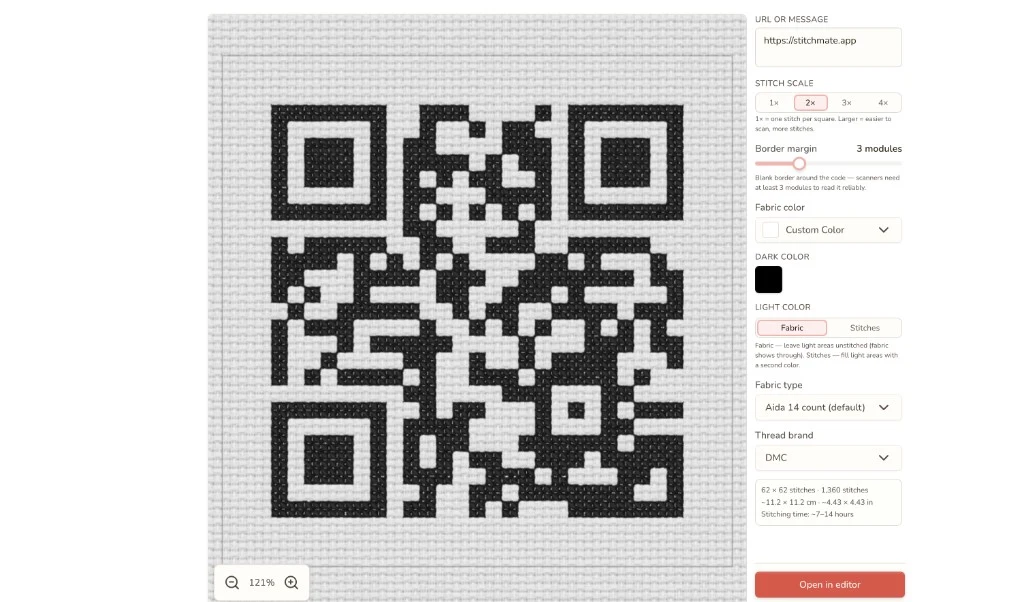
A working QR code is just a blocky grid — turn one into a scannable, stitchable chart the same way you convert pixel art.