| You want to… | Do this |
|---|---|
| Add a few threads quickly | Type the number and an amount |
| Bring in a spreadsheet or list | Import a list or file |
| Add every thread a pattern uses | Palette tools → Stash → Add this pattern's colors |
| Count a drawer at a time | Count my stash |
| Find out if you can start a pattern tonight | Can I stitch this? |
| Know what to buy for the pattern you're stitching | Track my threads |
| Take a list to the shop | The shopping list |
| Turn a photo into a pattern with what you own | Make it from your stash |
Stash Tracker
Record the thread you own, count it at your own pace, see what any pattern still needs, and keep a shopping list. Syncs across devices when signed in.
- Where to find it
- Home → Stash · Editor top bar → Stash · Progress tracker → Stash
Keyboard & modifiers
In the search
- / or Cmd/Ctrl+F
- Go to the search
- 310 Enter
- Look up a number
- 310 2 Enter
- Add a thread or set its amount
- 310 +1 Enter
- One skein more or fewer
In the list
- LeftRight
- One skein fewer or more
- Shift+LeftRight
- A quarter skein
- ?
- Have it, not counted
- B
- Want to buy
Your stash is the thread you already own. Keep it in Stitchmate and it stops being just a list: any pattern can tell you what you have, what you're short of and what to buy, and a photo can become a pattern using only what's in your drawer.
You don't need a perfect count to start. Add the numbers you own and leave the amounts for later, or for never.
Basics
- Open your stash from the Stash tab on the home screen, or Stash in the top bar of the editor or the progress tracker.
- Add threads by typing their numbers, or import a list.
- Check a pattern. Open it from your library, or turn on Track my threads while you stitch.
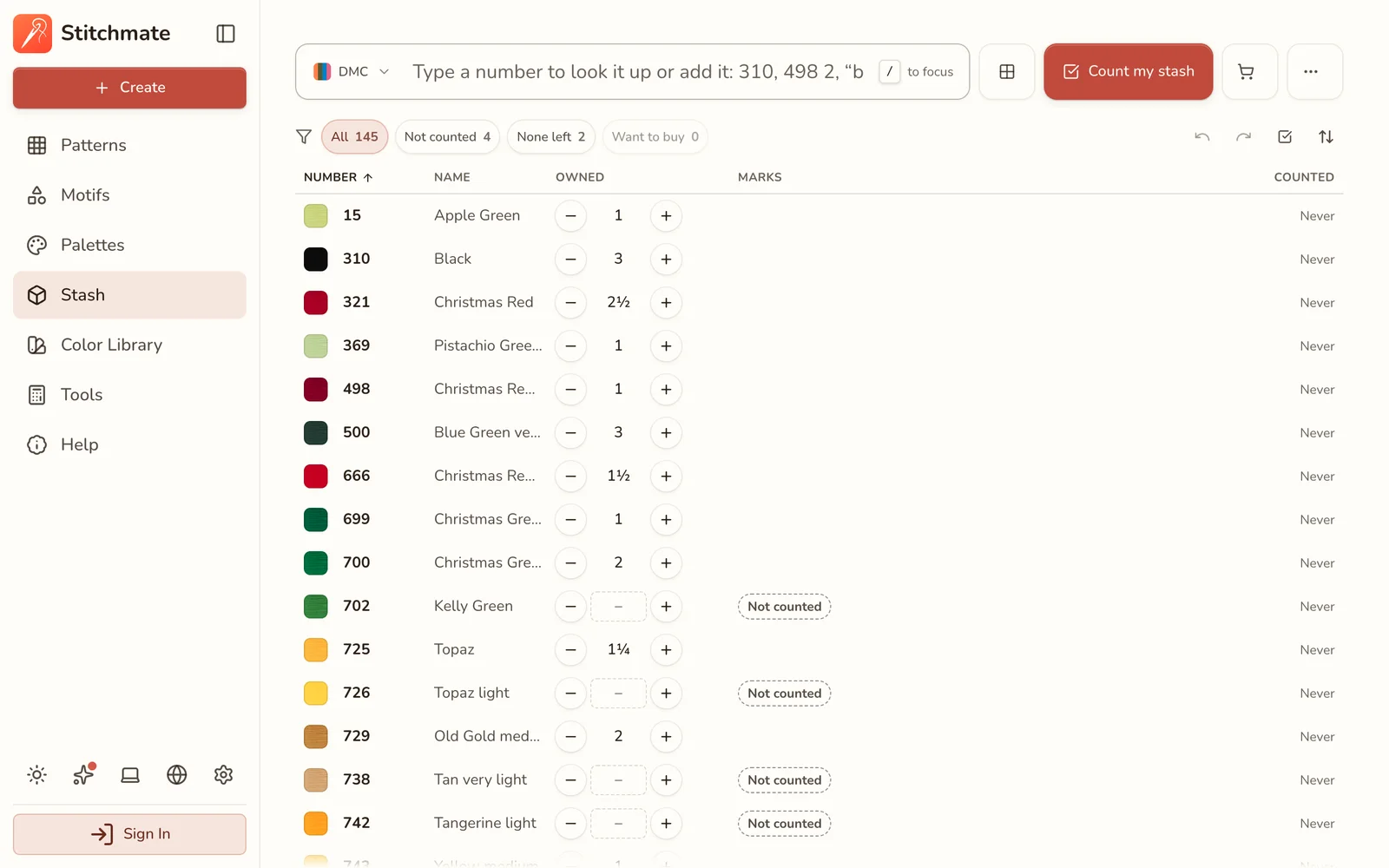
Your stash, with amounts in quarter skeins and the threads you haven't counted marked as such.
Adding your threads
Choose the brand next to the search, pick up a skein, and type its number and how many you have. 310 2 and Enter adds two skeins of 310. Type just the number and press Enter twice to add one. On a phone, tap Add and search by code or name.
Prefer to browse? The catalog of each brand is there too, by number, name or color. You can also add threads from other places:
- From a pattern: in the editor, open Palette tools, then Stash, then Add this pattern's colors.
- From the Color Library: press S on a thread to add it or take it out.
- From the thread color charts on this site, with the My stash button.
Importing a list or file
Import a list or file takes a CSV or text file, or rows pasted from a spreadsheet. Your columns are matched from their headers, and you can change a match if it's wrong. Download the template gives you a file with the right columns.
Before anything changes, every row lands in one of three groups:
- Ready rows will be added.
- Needs a look rows have a problem you can fix on the spot: a misspelled brand, a code that doesn't exist, an amount that can't be read. Rows you leave here aren't imported.
- Skipped rows won't be imported.
If a thread is already in your stash, you choose what happens: Use the file's amount, Keep mine, or Replace my whole stash. Replacing removes every thread that isn't in the file.
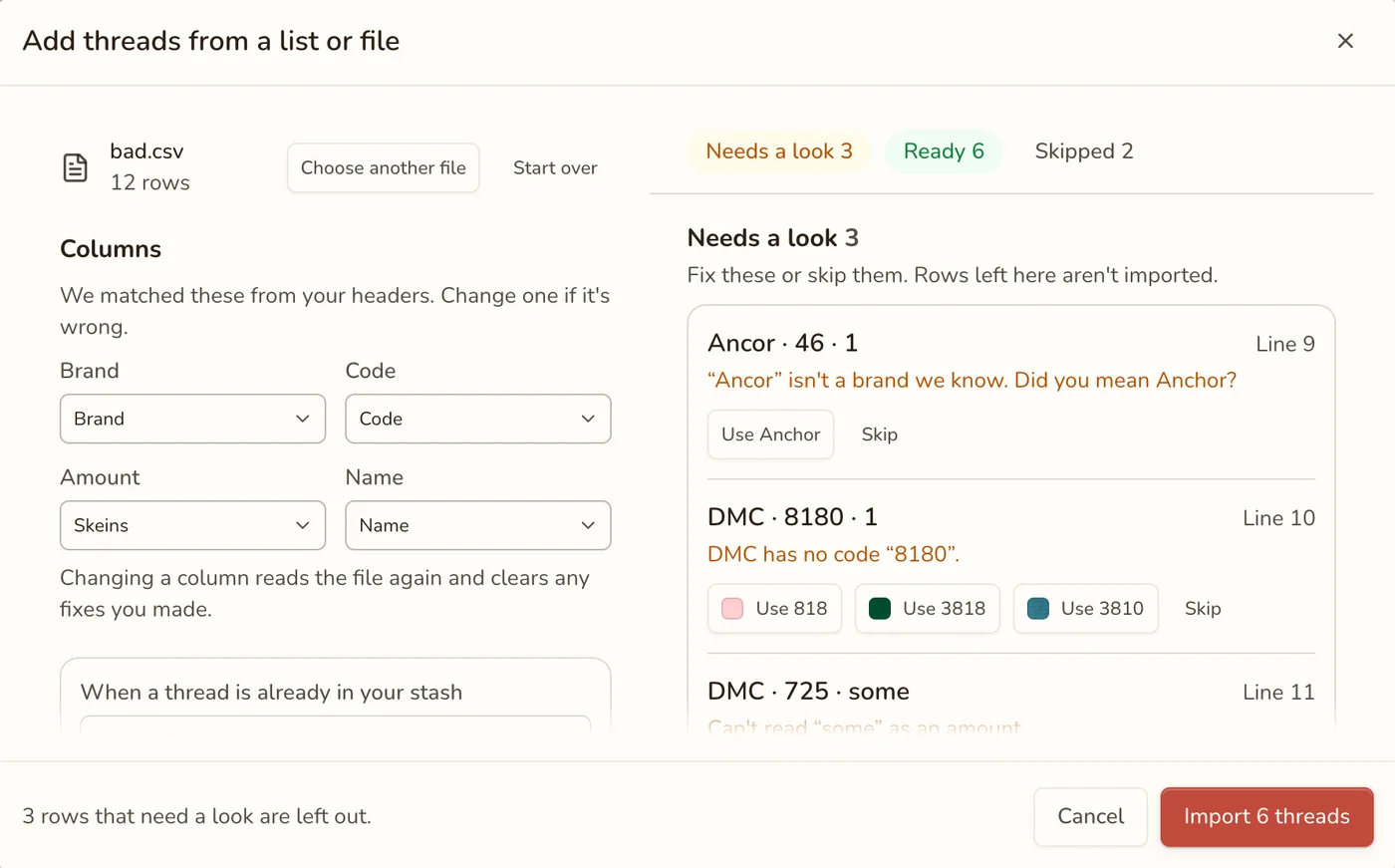
A typo doesn't sink the import. Each row that needs a look comes with suggested fixes.
Amounts, and when to skip them
Each thread has one of three states:
- A number of skeins, in quarter steps. Use the − and + buttons, or type a whole number or a fraction like 1½.
- Not counted means you have it but haven't said how many. It counts as enough, and the pattern check tells you so.
- None left is an amount of 0. The thread stays in your list and counts as missing.
Keeping every count up to date is a chore, so don't. Plenty of stitchers only record the threads they're low on. The filter chips above the list show what's Not counted, None left or Want to buy, and For this pattern narrows the list to a pattern's threads when you've opened your stash from one.
Counting your stash
Count my stash walks through your threads one at a time, so you can do it at the drawers with a skein in your hand. Choose what to count:
- Not counted yet: threads that have no amount.
- Everything by number: every thread, in number order.
- A number range: one drawer at a time, like 300 to 399.
- Counted longest ago: the stalest numbers first.
- What the list shows now: the threads in the list behind it, in its order.
Each card shows the last amount you recorded. Stop whenever you like, and your place is kept.
Can I stitch this?
Open a saved pattern's details in your library and Can I stitch this? answers from your stash: Ready to stitch, or how many threads you're short and how many skeins to buy. In the editor, the same answer is a line at the top of the palette, such as "Stash: 3 short". Press it to open your stash on the pattern's threads.
The stash's own at-a-glance view has Can I stitch it? too, listing your patterns with how many colors you have and how many to get. Both stay out of the way until your stash has threads in it.
If the answer leans on threads you haven't counted, it says so.
While you stitch
In the progress tracker, turn on Track my threads in Settings. It's set for each pattern, so a project you started long ago stays quiet until you want it. A new project offers to turn it on if you use it elsewhere.
Each color then shows its status, as a shape as well as a color:
| Status | Dot | Means |
|---|---|---|
| Enough | Green dot | Your stash covers what's left of this color |
| Short | Half yellow dot | You own some, but less than the stitches left will need |
| Missing | Red ring | It isn't in your stash, or you have none left |
Custom colors and blends have no dot, because there's no single thread to check.
The check is based on what's still to stitch, not the whole pattern. As you work, the need shrinks and dots move toward green. Tap the red or yellow count at the top of the list to see only those colors.
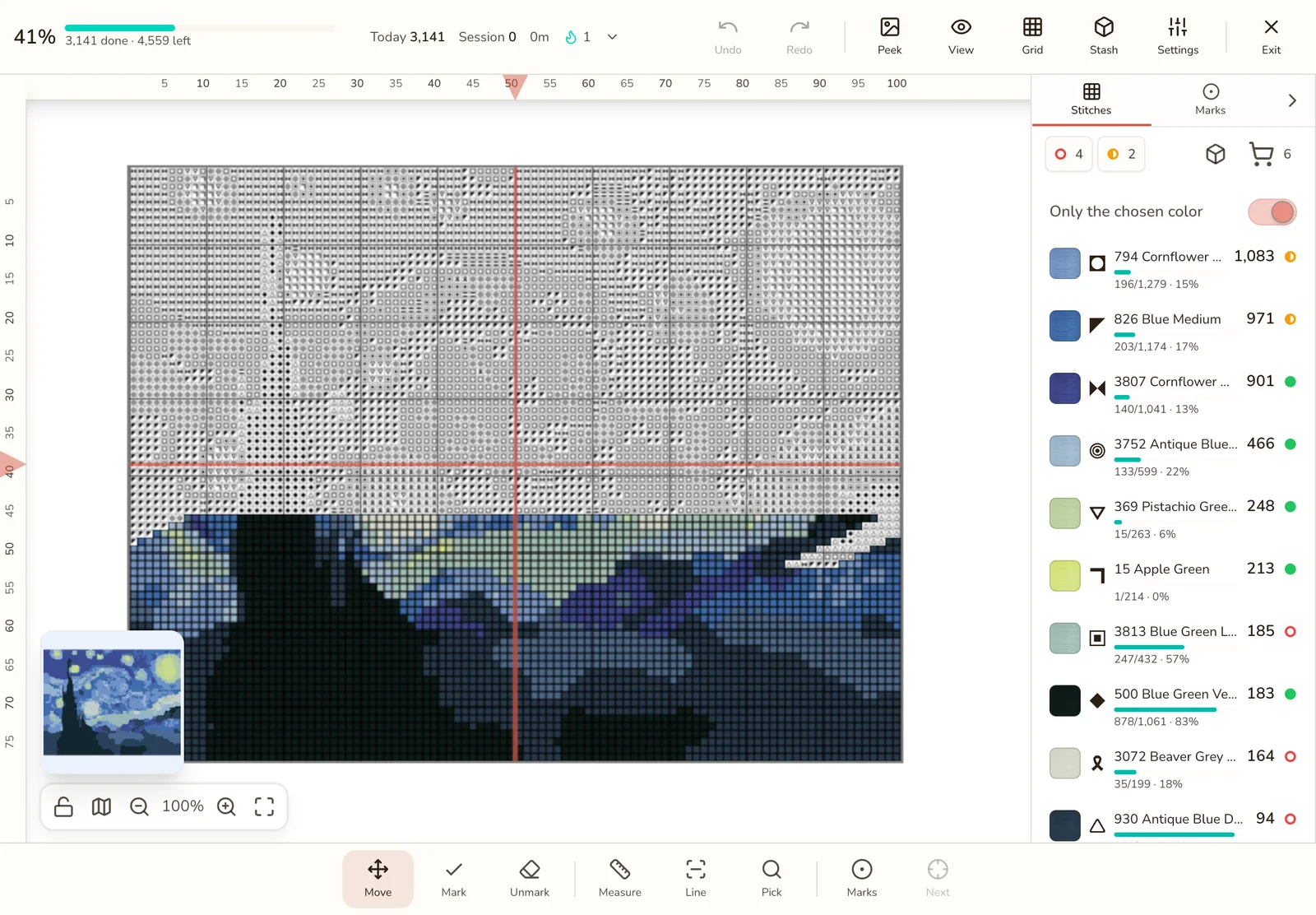
Four threads missing and two short for the rest of this pattern, with the status of each color beside its count.
After a session. When you leave the tracker having stitched colors you track, Update your stash quantities opens with the threads you used, the stitches you made in each, and an estimate of the skeins used. The estimate is only a guide: set what's actually left, then Save, or choose Not now. Nothing changes until you save.
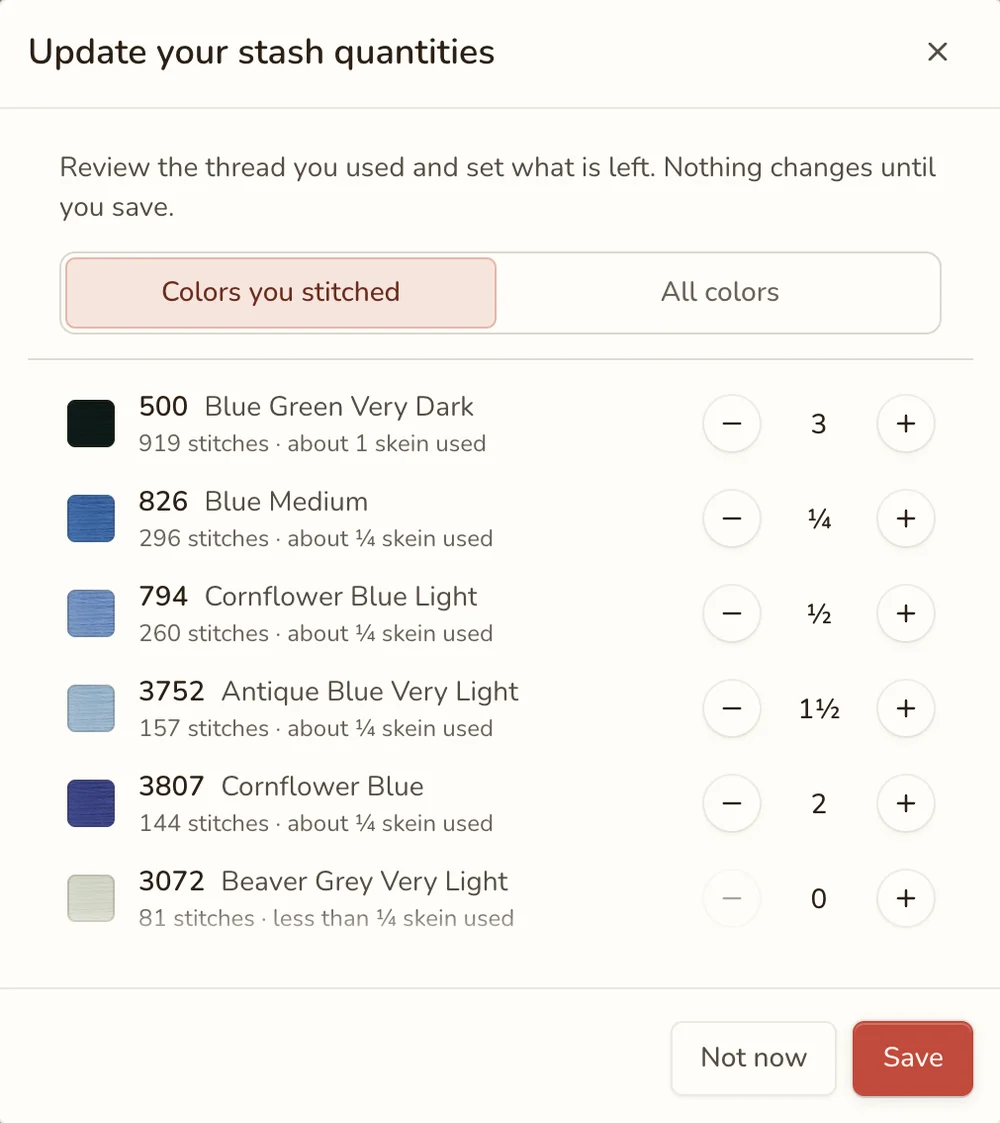
The review after a session. You set what's left; the estimate is only a guide.
Want to buy and the shopping list
There are two lists, and they meet at the shop:
- Want to buy is your own list across every project. Mark a thread with Buy in your stash, or press B, and set how many. The cart in your stash opens this Shop list, which you can copy or save as a text file. Add it puts a bought thread into your stash, so nothing is typed twice.
- Shopping list is worked out for one pattern, from the progress tracker: the colors you're missing or short on, for the stitches still to do, in whole skeins. Copy it as text, save it, or print it.
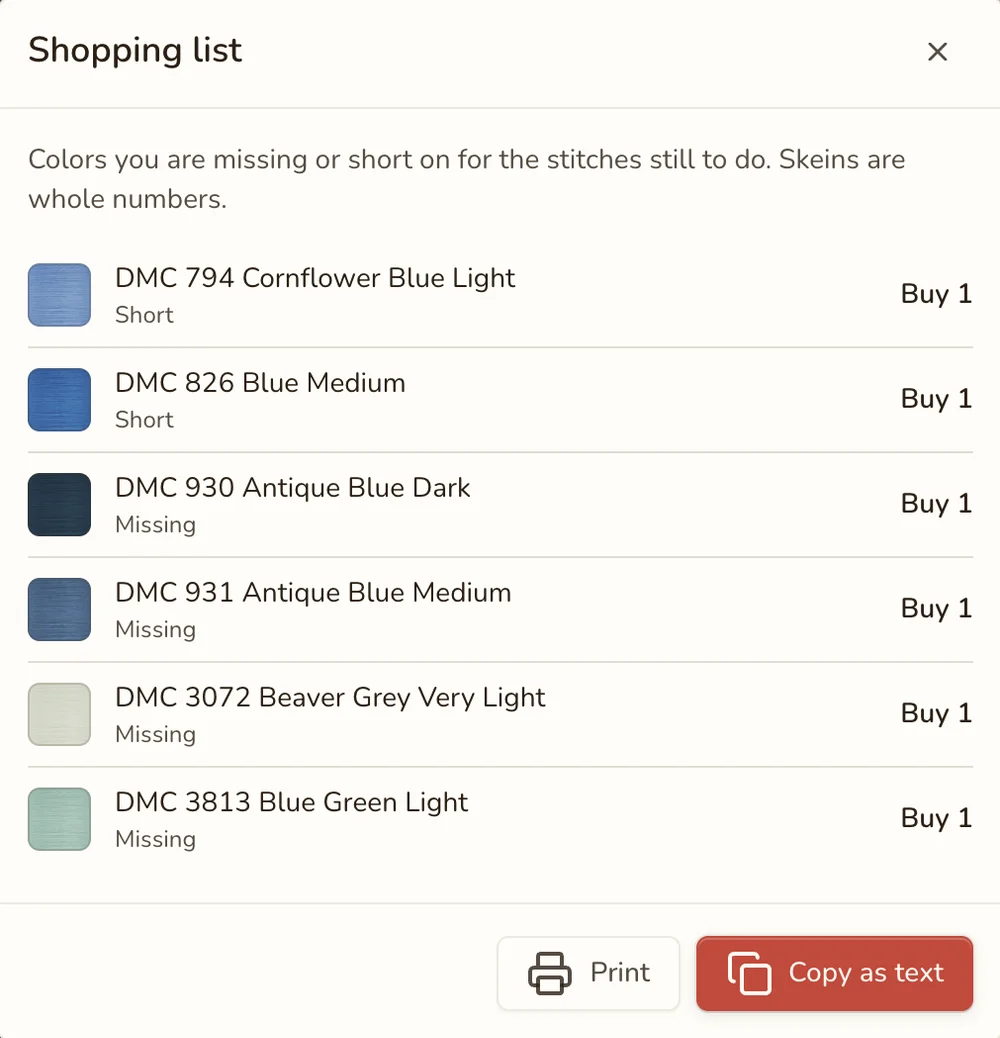
Only what you need for the stitches still to do, rounded up to whole skeins.
Making a pattern from your stash
Once your stash has threads in it, you can make a pattern you can start tonight:
- From a photo: pick Floss I own as the style in the image importer.
- On an existing pattern: choose Threads I own in Color Styles.
Every stitch then uses a thread you already have. This looks at which threads you own, not how much of each, so check the amounts on a large piece.
Your stash on every device
Signed in, your stash, amounts and want-to-buy list sync across your devices. Export to CSV saves a spreadsheet copy whenever you like, and it works as a backup too: the same file imports back in.
Known limits
- Thread only. Diamond painting drills and fuse beads aren't tracked, and those patterns show no stash controls.
- No automatic deduction. Your stash only changes when you change it, including in the review after a session.
- Skein figures are estimates. They depend on your fabric count and strands, and everyone stitches a little differently.
- Blends and custom colors aren't checked, because they don't match one thread.